
What's new in June 2026
This month's release is packed with updates designed to save your team time, improve data accuracy, and give you clearer visibility into what's happening across your practice. Here are the highlights:
- Scheduling group sessions just got a lot more flexible: group appointments are now supported across virtually any Place of Service, not just clinic settings.
- Are your providers actually hitting their weekly hour targets? A new Provider Desired Hours Consumption Report tells you exactly that, week by week.
- Cancelled appointments don't have to mean lost hours: a new Cancellation Recovery Report shows how well your team is recovering those hours through make-up and fill-in sessions.
- Your RCM workflows just got sharper: the dashboard now reflects contracted rates instead of billed amounts, payer-approved Allowed Amounts are visible during payment posting, and identifying unposted EDI claim lines is faster than ever.
- Intake data quality starts earlier: key demographic fields are now required in the Intake Portal before caregivers can submit, reducing downstream billing headaches.
- Patient preferences, all in one place: a new module in the Patient Profile centralizes availability, provider preferences, and more, laying the groundwork for AI-assisted scheduling.
📋 Intake Portal
Parent guardians can now download forms when logged in
Caregivers can now download a PDF copy of any intake form — submitted or still in progress — directly from the Intake Portal. A "Print" button appears at the bottom of every form alongside Save and Submit.
📍 Where to find it: Intake Portal > Forms
Key demographic fields are now required to prevent downstream billing issues
To improve data quality and billing readiness from the start of the intake process, Address Line 1, City, and Country are now required fields on the Patient Details form, as well as State and Zip Code for the designated Primary Caregiver. Forms with missing information will display an "Incomplete" indicator, and caregivers won't be able to reach the Sign & Submit step until all required fields are filled.
📍 Where to find it: Intake Portal > Patient Details | Legal Guardian
🗓️ Scheduling and Operations
Group appointments are now supported across more POS types
Group appointments can now be created at virtually any Place of Service (POS), not just clinic settings. Teams can now schedule group sessions at schools, community centers, day care facilities, and other locations. Home and Telehealth Home remain excluded. Go to Knowledge Base for more details.
📍 Where to find it: Scheduler > Group Appointments
New "Patient Preferences" module
A new "Preferences" section has been added to the Patient Profile, bringing together availability windows and provider preferences (language, gender, providers, etc.) — all in one centralized view. Availability and provider assignments sync automatically from the Scheduler, so nothing needs to be entered twice. Go to Knowledge Base for more details.
📍 Where to find it: Patient Profile > Preferences
✨ What to look forward to: This module brings us closer to AI-assisted scheduling capabilities in the near future!
A better way to manage provider desired hours
Log weekly desired work hours directly on a provider's profile as effective-dated records. These records power a new report (see New Consumption Report section below) that gives organizations visibility into staff scheduling utilization and serves as a foundation for future scheduling enhancements, including AI optimization. Go to Knowledge Base for more details.
📍 Where to find it: Provider Profile > Provider Desired Hours (Weekly)
An easier way to manage unassigned provider alerts
A new "Unassigned" filter option has been added making it easier to identify and manage alerts that have not yet been assigned to a user.
📍 Where to find it: Provider Alerts > Assigned To filter
Never lose track of a patient's Insured ID when reviewing expiring authorizations again
The Insured's ID now appears as the first column in Authorization and Funding Source expiration alert grids and their exports. No need to open individual patient records to verify the ID before following up.
📍 Where to find it: Patient Alerts > Authorization Alerts | Funding Source Alerts
👀 Visible in: Authorization Expiring in 30 / 60 / 90 Days | Funding Source Expiring in 30 / 60 / 90 Days | Authorization Expired
"Authorization Name" has been renamed to "Authorization Nickname"
The "Authorization Name" field has been renamed to "Authorization Nickname" everywhere it appears in the platform. A note has been added next to the field ("Visible only in Scheduler – Not in Claim") to make clear this is an internal label only. The payer-provided number belongs in the Authorization ID field, which now displays a blue indicator bubble for better visibility. No existing authorization data has changed.
📍 Where to find it: Scheduler > Authorization Form | Across platform
Appointment conflict alerts now take you exactly where you need to go
When clicking the redirect icon on an Appointment Conflict alert, users are now taken directly to the Provider Scheduler View (instead of the Patient Scheduler View), with the relevant appointment details already open, for faster conflict resolution.
📍 Where to find it: Scheduler Alerts > Appointment Conflict
🧠 AI Scheduling
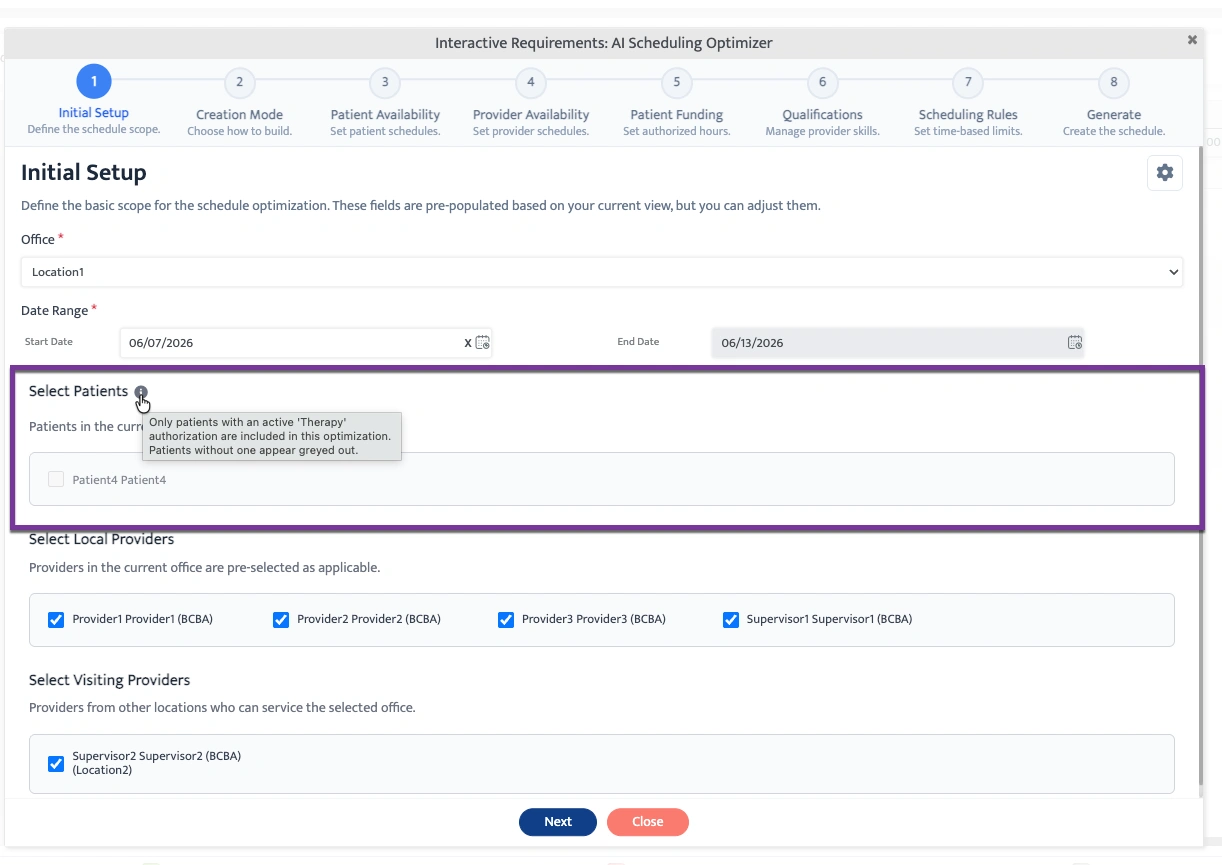
Visibility into active patients excluded due to missing authorization
When running the AI Scheduling Optimizer, patients without an active authorization during the selected scheduling window will no longer silently disappear from the list. They now appear in a clearly labeled section, greyed out with an explanation of why they're unavailable for optimization. Go to Knowledge Base for more details.
📍 Where to find it: AI Optimizer > Configuration Wizard
💳 Revenue Cycle Management
No more overstated earnings: Dashboard Earnings now reflect contracted rates instead of billed amounts
Your central dashboard financial metrics now use contracted/expected rates instead of billed amounts, giving a more realistic view of earnings, outstanding balances, and aging. Where helpful, the billed amount is still shown for reference.
📍 Where to find it: Dashboard > Central Dashboard
"Service Name" can now appear on primary, secondary, and resubmitted CMS 1500 and EDI 837 claims
Motivity can now display the Service Name on claim outputs for selected billable services, helping payers identify services when the same CPT/HCPCS code is used for different service types. This is set at the contract level and applies to primary, secondary, and resubmitted claims.
📍 Where to find it: Contract > Contract Details > Claim Configuration > Additional Settings
Clearer, more explicit language around claim reversals
The confirmation prompt when reversing an invoice or line item now clearly states that the action only voids the claim internally in Motivity and does not void or cancel the claim with the payer.
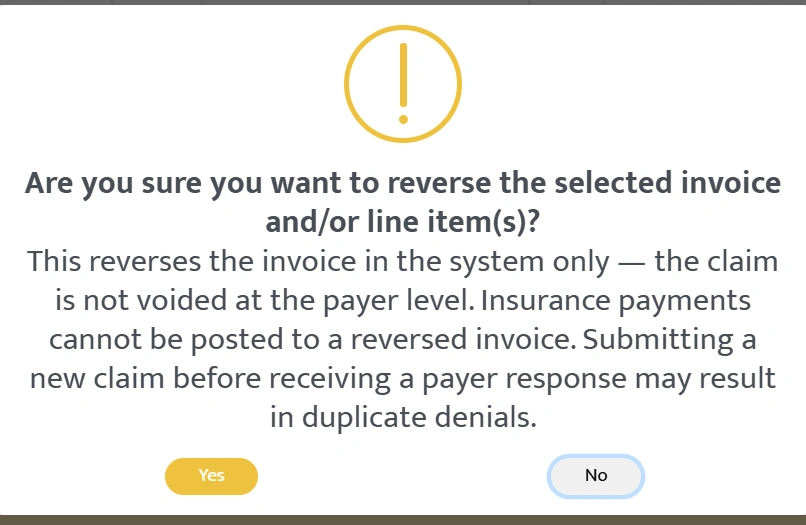
📍 Where to find it: Billing > Posted Invoices > Reverse
Visibility into "Allowed Amount" during payment posting
The payer-reported "Allowed Amount" is now captured and displayed during payment posting and in reports, making underpayments, over-adjustments, and payer discrepancies easier to spot. For ERA-based postings, it auto-populates directly from the file; for paper EOBs or manual entries, it can be entered by hand. The value rolls up at the service date, invoice, and closed invoice levels and is reflected in your AR Billing, AR Collections Applied, and AR Date of Service Wise Billing reports.
📍 Where to find it: Collections > Payment Posting | Collections > Denial | Closed Invoices popup | Invoice Timeline | Billing & Collection Reports
An easier and faster way to identify unposted EDI claim lines
A new "Pending Posting" status filter has been added to the EDI popup. This allows you to quickly see only the claim lines that still need action, removing already-processed lines from the view. The existing "Pending" status has been retired; those records now appear under "In Progress."
📍 Where to find it: Collections > Payment Posting > EDI Popup | Collections > Denial > EDI Popup
Revised ERA payments now process in a single workflow
The system can now process revised EDI 835 payments that include both a reversal and a corrected payment in the same file, reducing manual work when payers send corrected adjudications. These are flagged as "Identified Revised" and posted through the standard EDI workflow. The original payer-provided sequence is preserved for audit traceability.
📍 Where to find it: Collections > EDI | Collections > Manual Posting | Payment Records Drill-Down
📊 Reporting
Finally see how well your team is recovering cancelled appointment hours
A new Cancellation Recovery Report gives you a consolidated view of cancelled appointments alongside every make-up and fill-in session linked to them. For each cancelled appointment, see recovered hours broken down by type, remaining unrecovered hours, and an overall recovery percentage, all in one exportable report.
📍 Where to find it: Reports > Scheduling Reports > Cancellation Recovery Report
🔍 Available filters: State, Patient Location, Start Date, End Date
Quickly spot every appointment that didn't run as scheduled
A new Appointment Time and Duration Variance Report shows only rendered appointments where actual start or end times differ from what was originally scheduled. A new "Actual vs Scheduled Time Variance" column identifies the type of variance (started early, ended late, etc.), and a Duration Variance column shows the net time difference.
📍 Where to find it: Reports > Scheduler Reports > Appointment Time and Duration Variance Report
🔍 Available filters: Funding Source, Billable/Non-Billable, State, Line of Business, Date Range, Patient Assigned Office, Patient Name, Provider Name
Payroll admins: now you can know who rendered an appointment and when
Two new columns have been added to Payroll Timesheet Entries: Rendered By (the staff member who rendered the appointment) and Rendered Date/Time (the UTC timestamp when it was first rendered). Appointments still in Scheduled status show N/A in these columns. Original render details are preserved even if the appointment is later modified.
📍 Where to find it: Payroll Report & Payroll Report (In Minutes) > Timesheet Entries
Are your providers actually hitting their weekly hour targets?
A new Provider Desired Hours Consumption Report compares each provider's configured Desired Hours against their Scheduled and Rendered hours, calculates the variance, and shows fulfillment status. Multi-week selection is supported, with each week displayed as a separate row per provider. Historical Desired Hours values are respected so past periods always reflect the correct targets.
📍 Where to find it: Reports > Provider Productivity Reports > Provider Desired Hours Consumption Report
Questions about any of these updates? Reach out to your Customer Success Manager or visit the Motivity Help Center.