

What’s new in November 2026
Release dates: Motivity Clinical updates go live November 19th. Practice Management and Revenue Cycle Management updates follow on November 24th.
November is about the work behind the session: overtime that follows your rules, payments that post without workarounds, and more control over your own dropdowns and reports. Scroll to the end for a preview of the AI features now in Beta and Alpha.
Practice Management
Payroll overtime settings
Overtime that follows your unique rules
Motivity isn’t your payroll system, but it does the groundwork for it by helping payroll admins calculate regular and overtime hours from the time providers work. Until now, the payroll export ran one built-in overtime calculation for every provider, which still meant manual adjustments for practices with state-specific overtime rules, provider exceptions, or multiple locations. This release lets you define overtime the way your organization actually pays it:
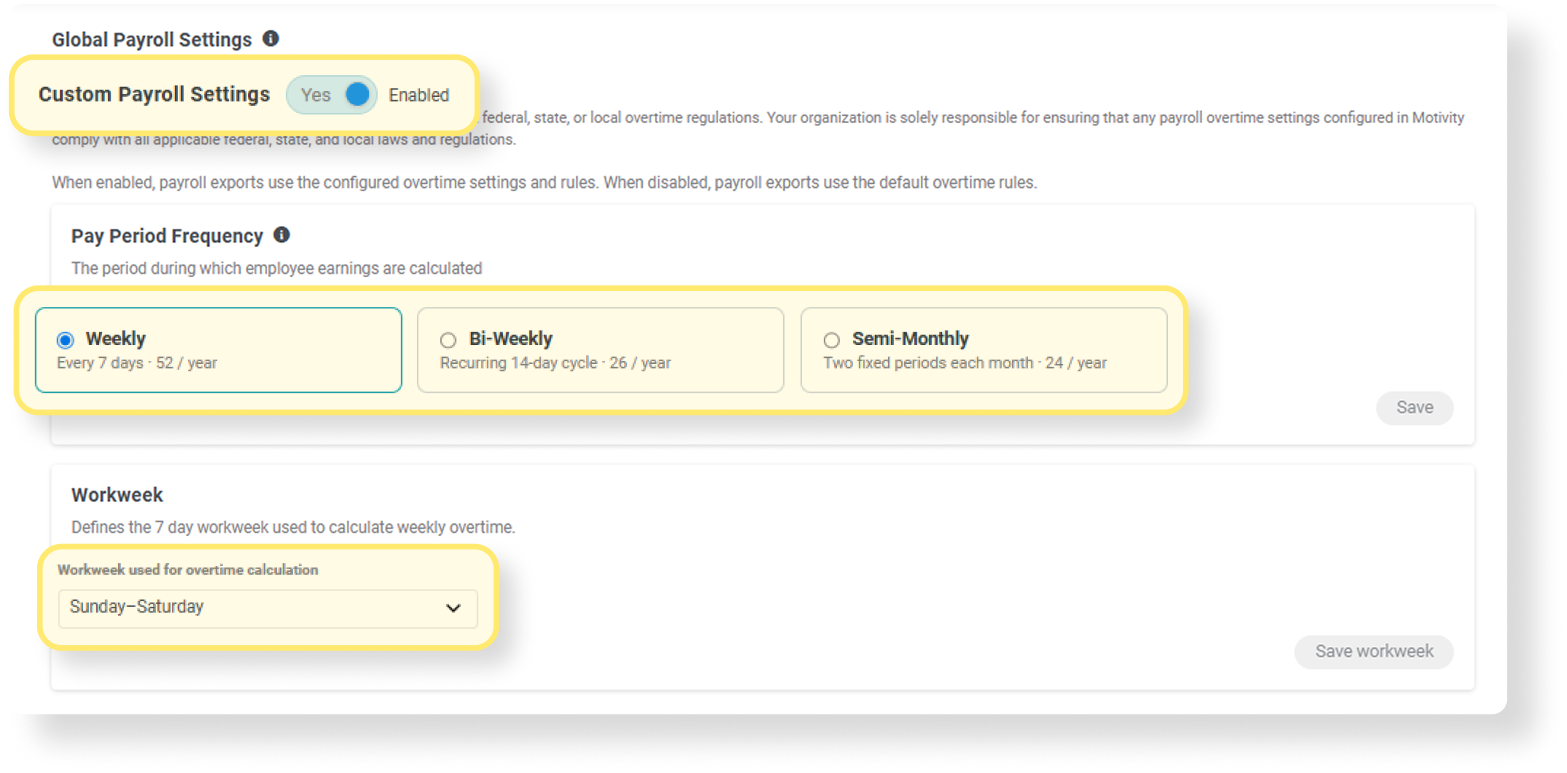
- Global Settings: set your pay frequency (weekly, bi-weekly, or semi-monthly) and the 7-day workweek overtime is calculated on.
- Overtime Rules: build named rules from any mix of daily, weekly, consecutive-hours, and consecutive-day thresholds.

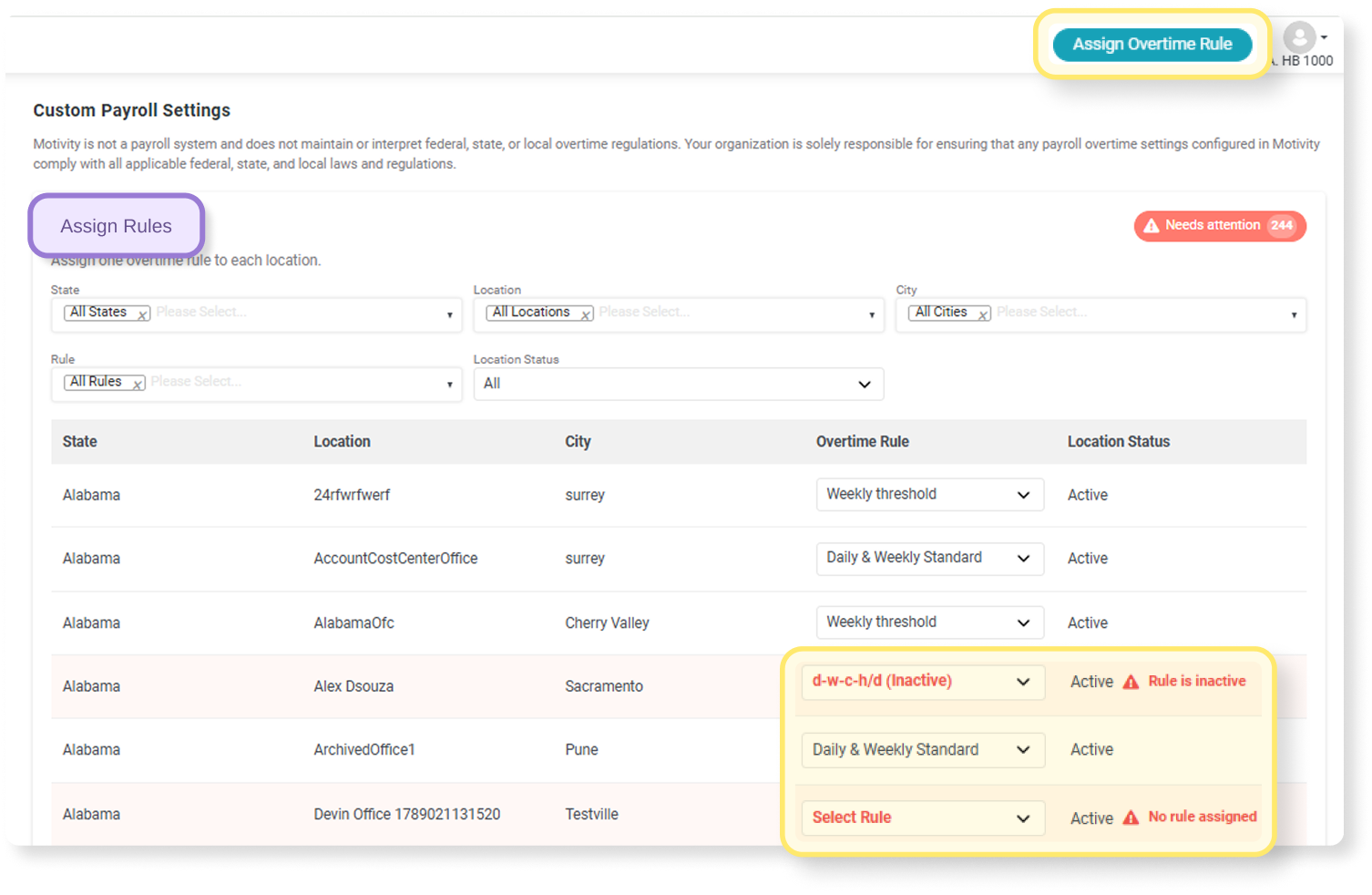
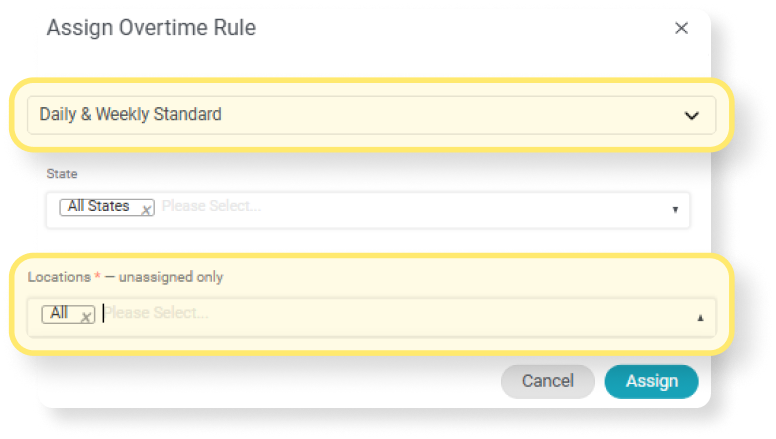
- Assign Rules: assign a rule to many locations in one action, with a Needs Attention flag on any location left without one.
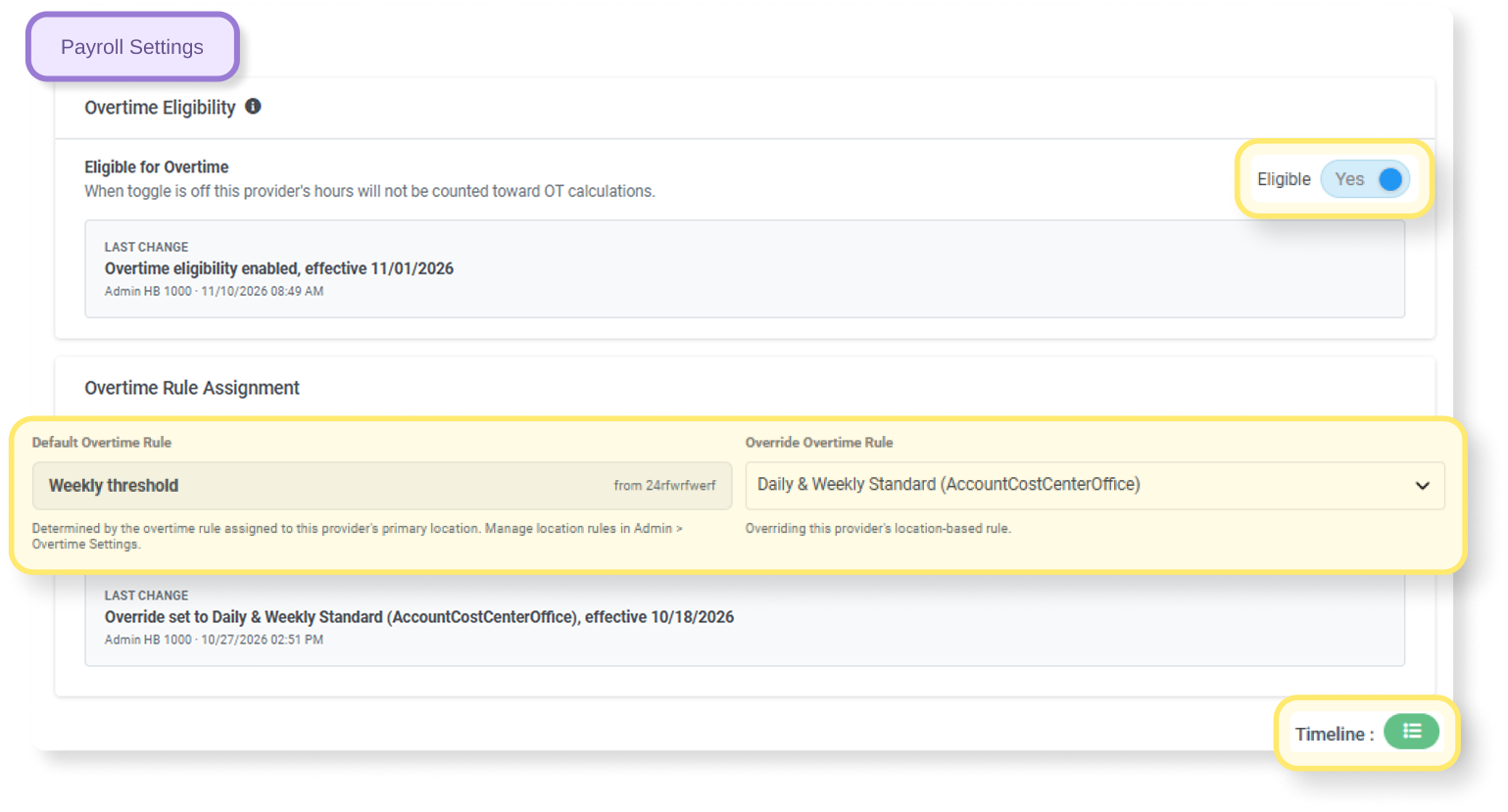
- Provider Payroll Settings: handle the exceptions, like a contractor who isn’t eligible for overtime or a provider on a legacy override rule.
- Provider Eligibility: review every provider’s eligibility and applied rule on one screen, and export the list.
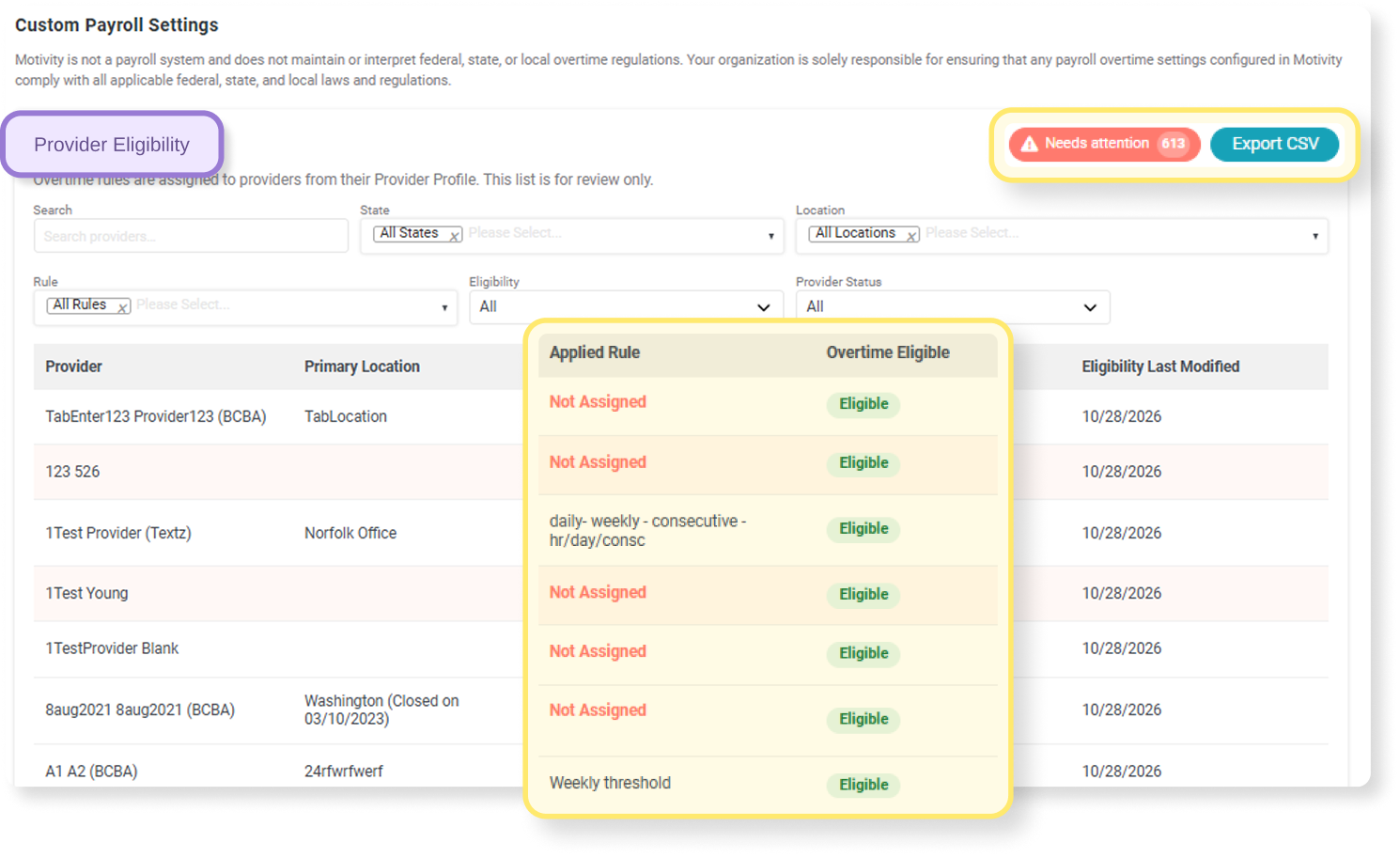
Where to find it: Admin Settings > Payroll Settings | Provider Profile > Payroll Settings | Payroll Report
Knowledge Base articles:
- How to Set Up Custom Overtime (Motivity Practice Management)
- How to Manage Provider Overtime Eligibility and Overrides (Motivity Practice Management)
- How Overtime Is Calculated in the Payroll Export (Motivity Practice Management)
- Custom Overtime: Frequently Asked Questions and Troubleshooting (Motivity Practice Management)
Patient reports · Authorization utilization & cancellation
See how cancellations affect authorization utilization, in one report
When a payor asks why a learner used only part of their authorized hours, the answer usually involves cancellations, and pulling it together meant cross-referencing several screens. The new Authorization Utilization & Cancellation Report puts scheduled, rendered, and canceled hours side by side against each authorization’s maximum, with cancellations broken down by who canceled and whether notice came more or less than 24 hours ahead. Practice operators and clinical directors can compare attempted utilization (scheduled) with actual utilization (rendered) for every authorization, and a built-in reference sheet explains each calculated field.
Where to find it: Reports > Patient Reports > Authorization Utilization & Cancellation Report
Knowledge Base article: How to Use the Authorization Utilization & Cancellation Report (Motivity Practice Management)
Good to know: Start and End Date are required. An authorization is included when its start or end date falls in your range, and only hours inside that range are counted. Percentages use all scheduled hours as the denominator.
Reporting
Custom fields and new filters
- Custom fields in Basic Info reports. A new Include Custom Fields filter adds every patient or provider custom field as columns at the end of the Patient and Provider Basic Info Reports. It defaults to No, so reports look the same until you switch it on.
Where to find it: Reports > Patient Basic Info Report | Provider Basic Info Report - Filter Scheduling Optimizer Additions by funding source. Narrow the Center × Month addition counts to the payors or funding types you care about. With all selected, totals match the current report.
Where to find it: Reports > Scheduling Optimizer – Additions - Filter the Appointment Audit Report by patient. Pull audit activity for one patient or a few without sorting through the full report, which speeds up payor questions and billing research.
Where to find it: Appointment Audit Report
Admin updates
Other key updates for admins
- Credential a newly added state without starting a whole new checklist. When you pick up a new participating state after Initial or Recredentialing is done, a Supplement Checklist links to the existing main checklist, so you add only what the new state needs. Supplements carry a tag on their tile, every checklist gets its own Checklist ID, and a linked supplement reports in the same row as its main checklist.
Where to find it: Delegate Credentialing > Add Checklist > Supplement Checklist toggle - See who changed a custom field, and when. Each custom field now has a read-only Timeline that logs when it was created, edited, deactivated, or deleted, including changes to its label, type, Required setting, category, and display location.
Where to find it: Admin > Custom Fields > Timeline icon - Admin Time Tracker lists offices A–Z. Office groups in the Pending Approval and Approved tabs now load in alphabetical order, so admins approving time across many locations can find the right one without scanning.
Where to find it: Admin Time Tracker - Group-appointment mileage is counted once. The Mileage Report used to repeat the provider’s mileage for every patient in a group appointment, inflating totals that employers reimburse. Group appointments now show as one row with every patient listed together, and Appointment ID is the first column. If you’re comparing with earlier reports, expect lower totals where groups were counted more than once.
Where to find it: Mileage Report
Scheduler
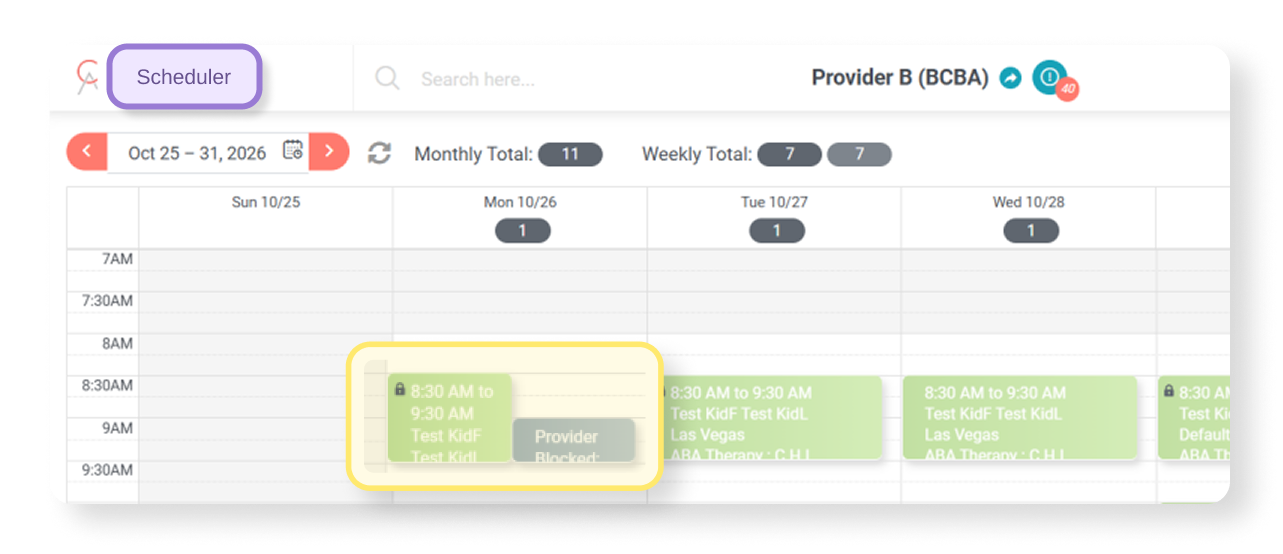
Make-up appointments
Cover several cancelled sessions with one make-up appointment
A learner misses two sessions in a week, and the family can make up both in one longer appointment on Saturday. Until now, a make-up could link to only one cancellation, so schedulers created extra appointments or tracked the rest in a spreadsheet. Now one make-up or fill-in appointment can link to several cancellations at once, picked from a date range. Make-up time is applied to the oldest cancellation first, and schedulers can see how much time is allocated and how much is left on each cancellation before they save. The Cancellation and Recovery Report now shows the right duration for each link, giving clinical directors a truer picture of recovered hours.
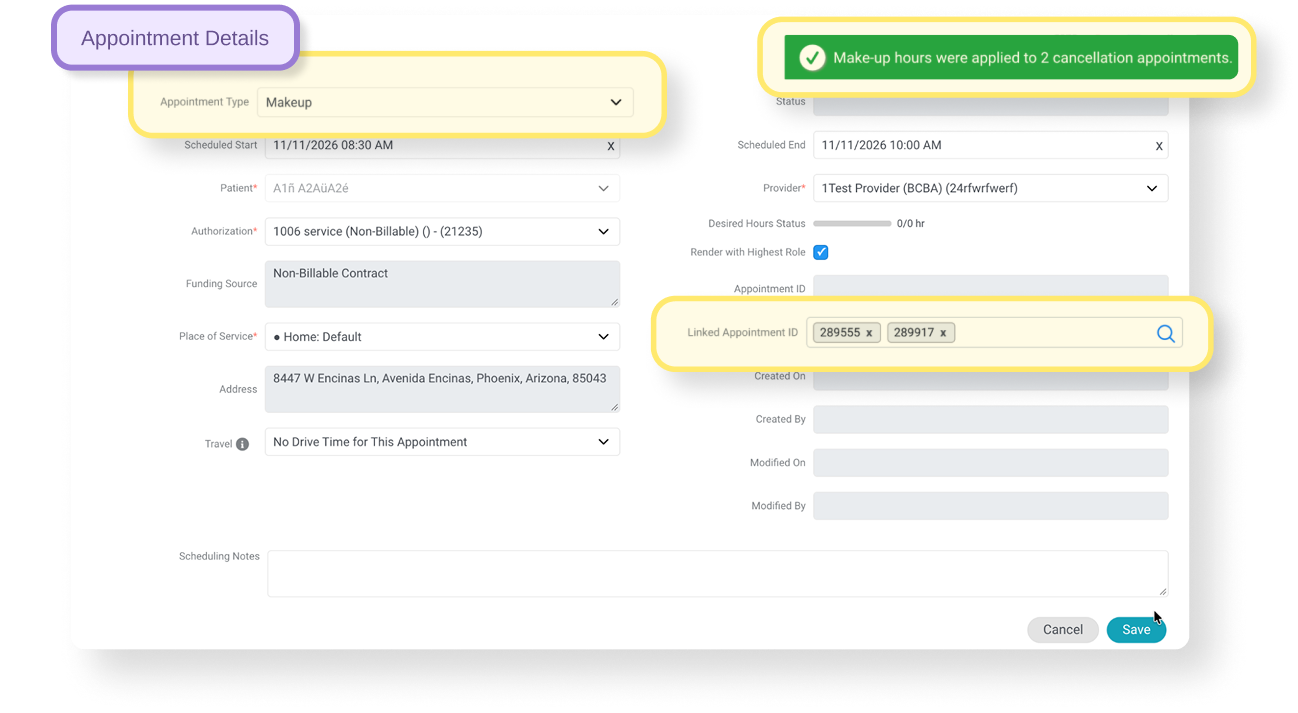
Where to find it: Scheduler > Make-up or Fill-in appointment > Link Cancelled Appointments
Scheduler timeline access
Choose which roles can see the Scheduler Timeline
A new View Timeline access level lets admins hide the Timeline from specific roles, including through deep links and saved views. It’s on for every existing access level at release, so nobody loses access unless you change it.
Where to find it: Admin > Access Level > Scheduler > Scheduler View
Revenue Cycle Management
Billers, this section is mostly for you. More than ten substantial updates, nearly all of them about money that got stuck between a primary payor, a secondary payor, and a check that didn’t add up.
Coordination of benefits and secondary claim sequencing
Post a primary recoupment without touching the secondary claim
When a revised Primary payment changes the coordination-of-benefits basis for a Secondary claim, the system now handles the Secondary in the right order instead of letting payer arrival order decide. It removes, voids, corrects or holds the Secondary based on the revised Primary outcome and the Secondary claim’s current status.
If the primary is denied, a Primary Denial Incident opens. An unsent secondary claim is removed, and a paid or pending secondary is left as is. A denied secondary stays denied, and its incident closes.
If no balance is left for the secondary, an unsent claim is removed. A paid or denied claim gets a void (frequency code 8) that references the payor’s original ICN. For a pending claim, the void waits until the payor responds.
If a balance is still owed to the secondary:
- An unsent claim is regenerated from the revised primary data.
- A pending claim is flagged for review.
- A paid claim gets a corrected claim (frequency code 7) only if the coordination of benefits (COB) data changed.
- A denied claim always gets a frequency code 7 resubmission.
Where to find it: Collections > Payment Posting | Billing > Unposted Batches/Posted Invoices | AR Manager > Denials
Good to know: A void resends the original claim data unchanged. Anything that needs a biller’s decision surfaces as an incident in AR Manager.
Policy types
Every payor gets the claim filing code it’s expecting
Commercial payors expect a specific claim filing indicator on every claim, like BL for Blue Cross Blue Shield or HM for an HMO. Claims that went out with the catch-all ZZ code were easy rejections. Now Line of Business on the contract becomes Policy Types, a multi-select of X12 claim filing indicator codes. Each patient’s funding source uses one of the codes its contract allows, and that code drives both 837P SBR09 and CMS-1500 Box 1.
Where to find it: Contracts > Contract Details > Policy Types | Patient > Funding Source > Policy Type
Good to know: The funding source policy type is required when the contract allows more than one option, and set automatically when it allows only one. Claim scrubbing flags any policy type the contract doesn’t allow before the claim goes out.
Billing · Unposted batches
Post the primary payment even when the secondary claim has an error
Posting a primary payment also generates the secondary claim, and until now, a scrubbing error on that secondary blocked the primary from saving. A clean primary payment sat unposted over an unrelated problem. Now the two are separate: the primary posts and reconciles, and the secondary is held with its error in its own Unposted Batch, named for the payor, until a biller fixes it and regenerates. A new dashboard tile shows how many secondaries are waiting and the balance behind them.
Where to find it: Billing > Unposted Batches > “Secondary [Payor Name]” | Dashboard > Billing Alerts > Secondary Balance Pending Posting
Good to know: Nothing goes to the clearinghouse until the secondary clears scrubbing. While a secondary exists, Reverse Invoice and Reset Applied Payment are blocked on its primary invoice, and secondary batches can’t be deleted.
Invoice timeline · Full claim timeline
Follow a charge from primary to secondary to patient in one timeline
To trace what happened to a charge, billers used to open the primary invoice, then the secondary, then the patient responsibility, copying payment numbers between timelines to piece the story together. A new Full Claim Timeline tab merges every event for that charge into one view, newest first, with each event tagged by responsibility, payor, and invoice number. It shows the same history whichever linked invoice you open it from.
Where to find it: Billing > Posted Invoices > Invoice Timeline > Full Claim Timeline | Collections > Invoice Timeline icon
Good to know: New AR Manager events (moved in or out of AR Manager, PLB linked or unlinked) are recorded from release onward only.
Unposted batches errors
“Rate Not Found” errors now tell billers exactly which rate is missing
When a batch hit a “Rate Not Found” error, billers got one long message listing every rate variable. Finding the setting with no matching rate meant checking four or five screens. Now the error checks each rate dimension (Service Item, Office Location, Place of Service, Appointment Date, Service Time, and Role/Credential) and names only the one that’s missing. Dimensions that already match are listed separately, so billers don’t recheck them, and the error names the contract and the path to add the rate. Rate errors get fixed faster, and batches clear sooner.
Where to find it: Billing > Unposted Batches > [Batch] > Errors | Contracts > [Contract] > Rates > Add Rate
How to fix it: Check the Missing line on the batch’s Errors tab, add the rate under Contracts > [Contract] > Rates > Add Rate, then click Regenerate Batch.
Payment manager
More ERAs post on their own, and every check reconciles
Payment posting is where an ERA either adds up or turns into a biller’s afternoon. This update targets the remittances that used to fail, stall, or post halfway, so billers spend less time rebuilding checks by hand.
- Recoupments post automatically. When a later check takes back money from an earlier posting, Motivity now reverses and reposts it as long as the covered amount matches, including reversal-only and reversal-plus-split cases. That covers nearly every recoupment in an ERA (82% are reversal plus payment, 15% reversal only, 3% reversal plus split), and when one can’t post, the error says why.
- Split service lines post in full. When a payor splits one charge into a paid line and a denied line, both now post to that charge. The denied units reach the denials queue while there’s still time to appeal, instead of sitting as Not Found.
- Smarter claim matching. When an ERA line’s claim ID doesn’t match an invoice, posting now tries service details like date of service, billed amount, CPT, modifiers, and units. A single confident match posts automatically, and anything else stays Not Found for review.
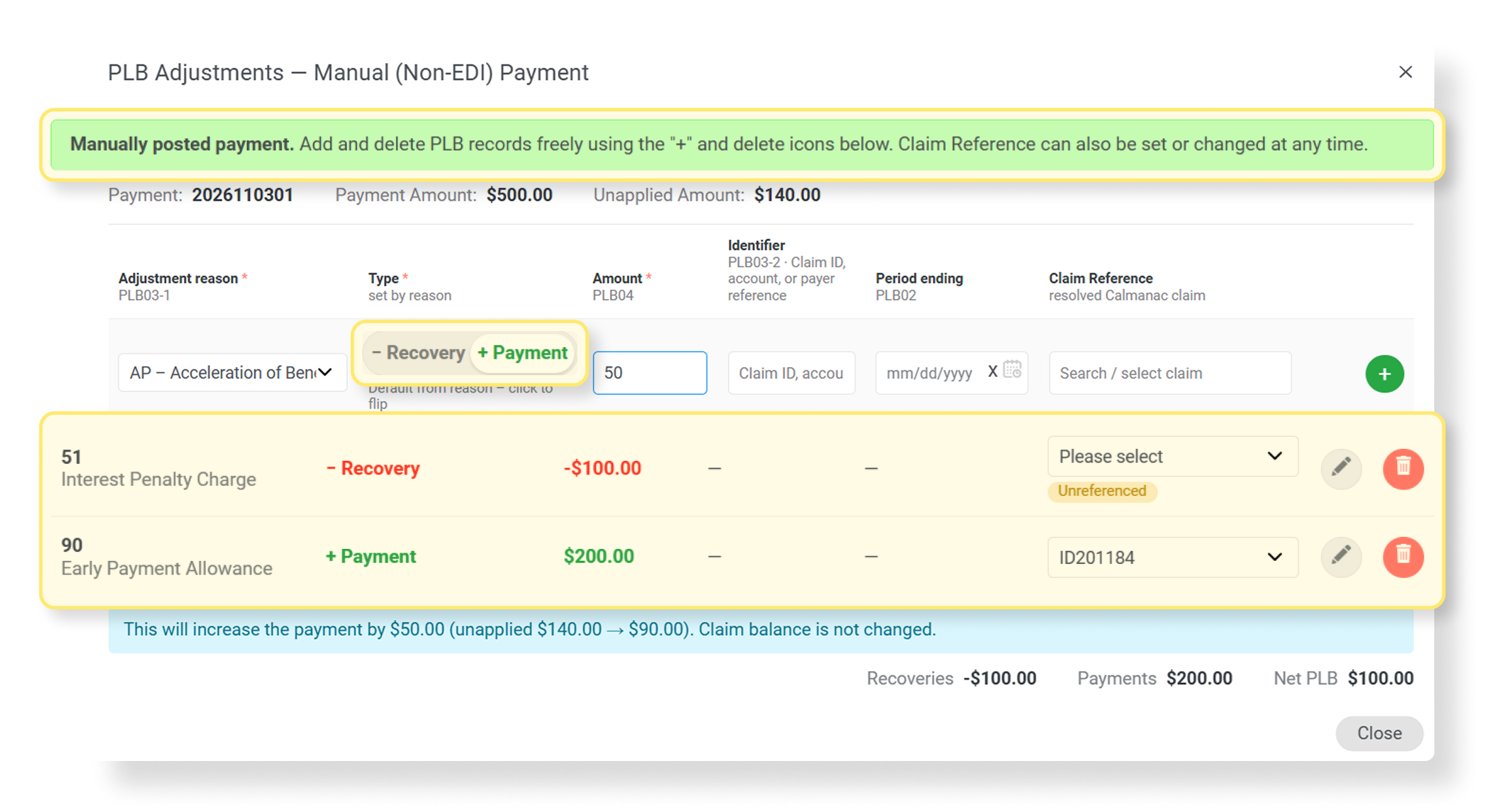
- Provider Level Adjustments (PLBs) are captured and posted. PLB segments from the 835 now post at the payment level without changing any claim balance, and billers can link them to a claim or add them to manual payments. A check that carries $800 in claim payments but arrives for $0 finally reconciles.
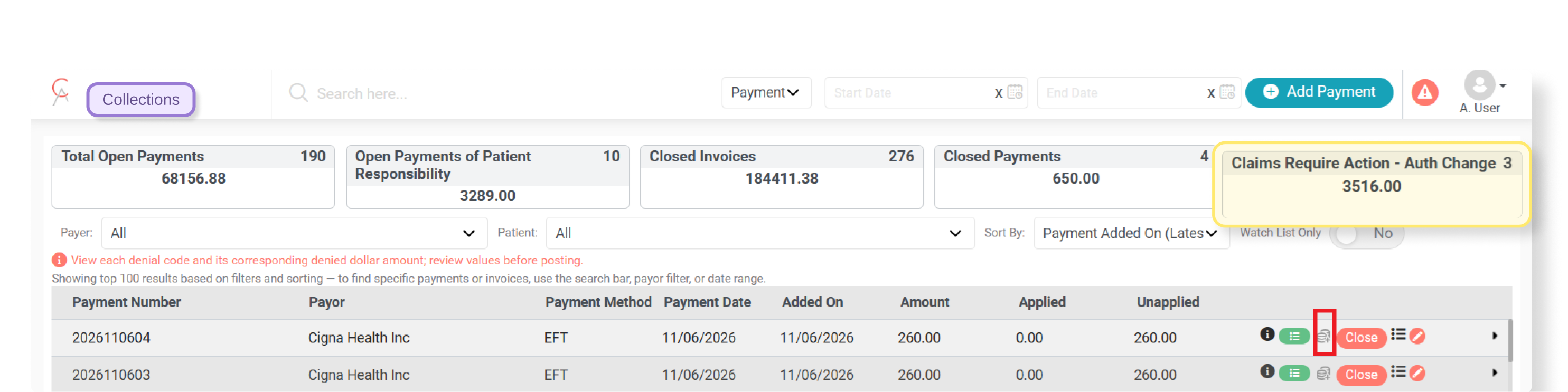
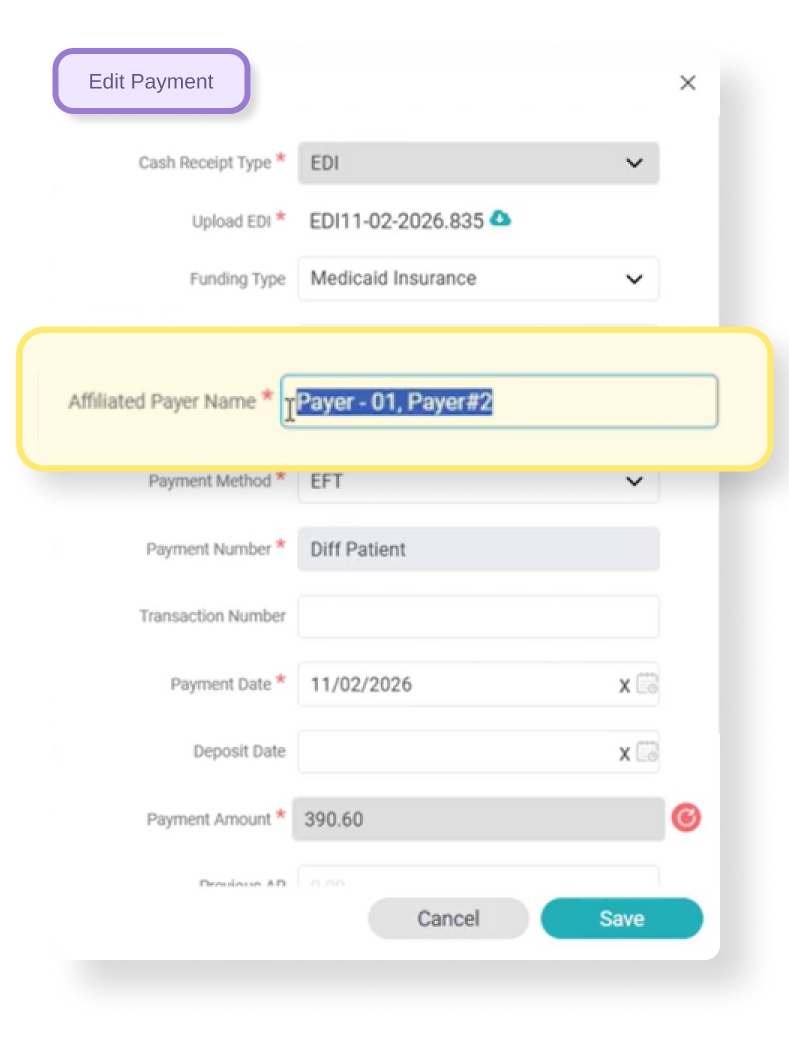
- Unmatched payor names no longer drop the ERA. An 835 whose payor names don’t match any contract now creates a payment record instead of failing silently. Billers pick the right contract in Payment Edit and finish posting without re-importing the file.
Workflow flexibility
Fewer workarounds when a billed claim needs to change
Correcting a claim after it’s billed shouldn’t break something else along the way. These four changes give billers safer ways to reverse, reset, and transfer, and block the one action that used to leave payments orphaned.
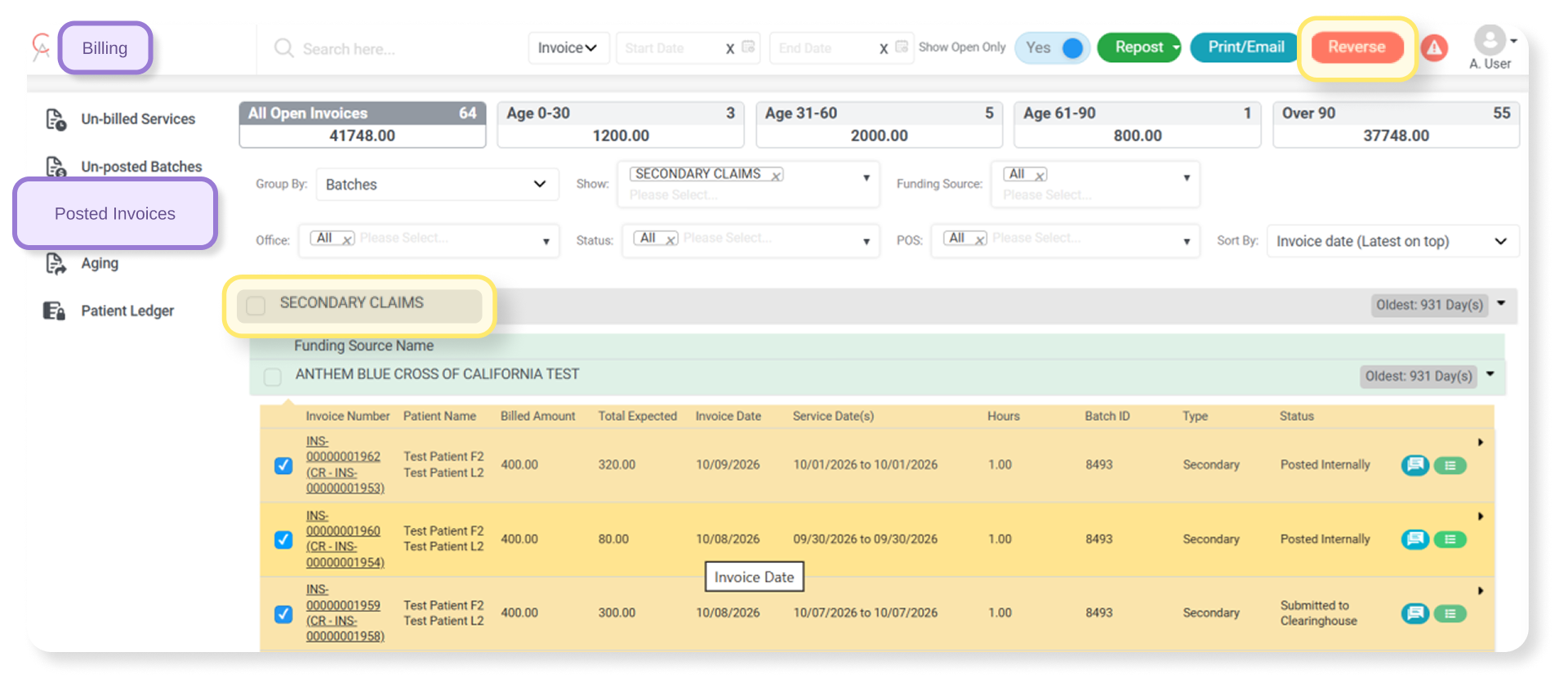
- No reversals while a claim is waiting on the payor. Invoices that are submitted and awaiting a payor response can no longer be reversed, which protects the record that future payments and ERAs post against. In a bulk reversal, eligible invoices still go through, and a summary lists the skipped ones.
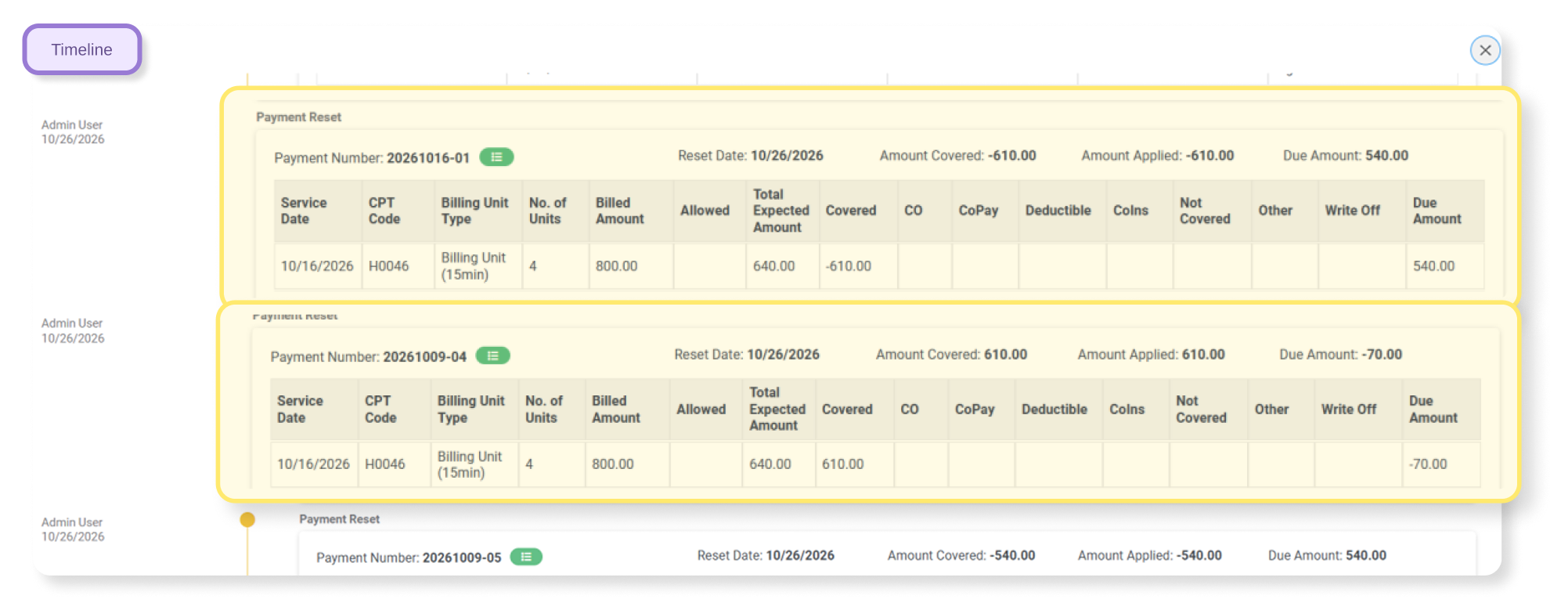
- Payment reset handles payor revisions. Reset Payment now unwinds a revision that posted both a positive and a negative entry on the same charge, using offsetting entries instead of edits. Each reset shows on the invoice and payment timelines, so the audit trail stays intact.
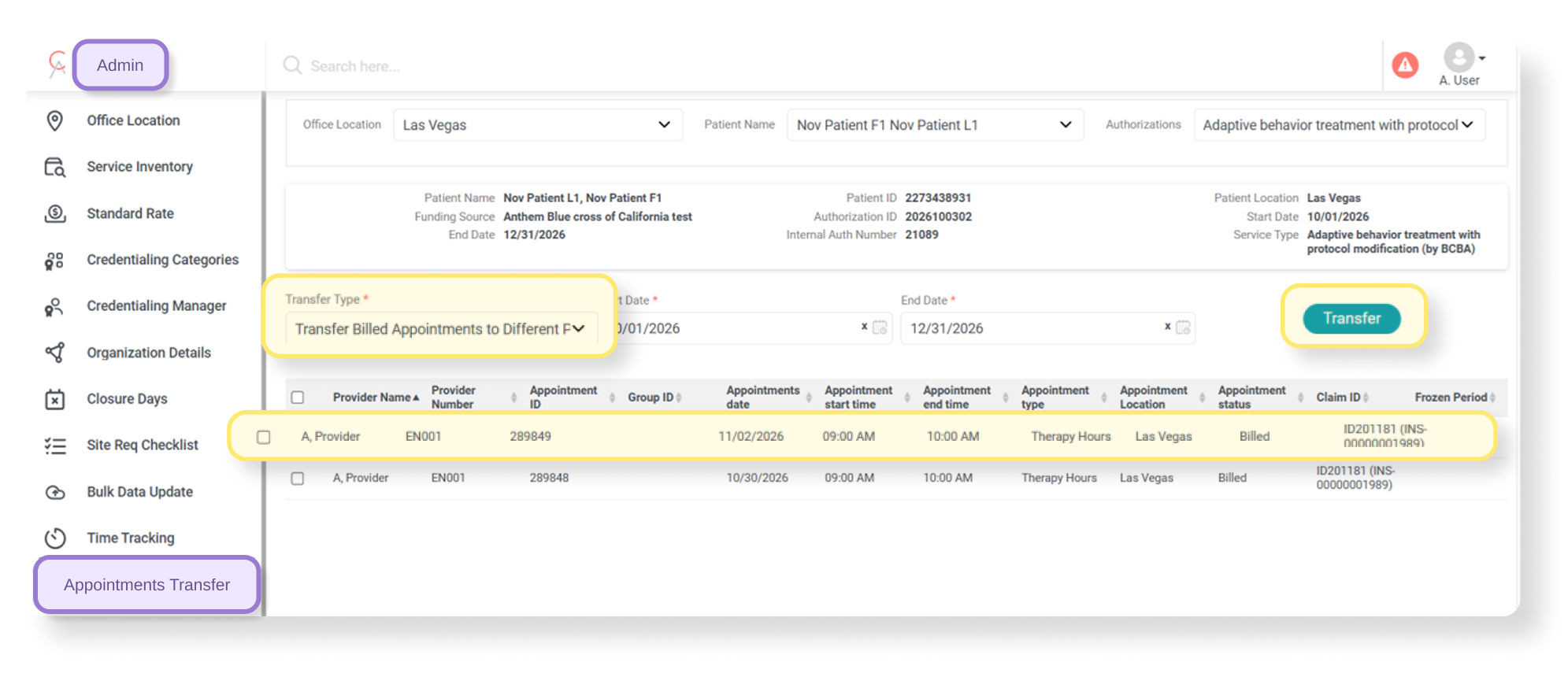
- Transfer a single claim line. Billed Appointment Transfer now lets billers move one claim line to a different payor without voiding and rebilling the whole claim. The line is voided, and a new claim lands in Unposted Batches.
- Provider blocks no longer stop transfers. Past appointments that overlap a provider block, like a lunch break, now transfer to the correct authorization or payor. The provider and the block stay as they are, and every other validation still runs.
Clinical
Learner profile export
Export learner profiles for a whole caseload in one file
Teams that use Motivity exports for QC, analytics, or a data warehouse already had session and note data, but with no easy way to pull the learner details those records belong to. Now admins can export learner profile information for one learner, a learner group, or the whole organization into a single CSV, with one row per learner. It runs in the background like other exports.
Where to find it: Learners > Export > Learner Details
Clinician updates
A few small but mighty updates for clinicians
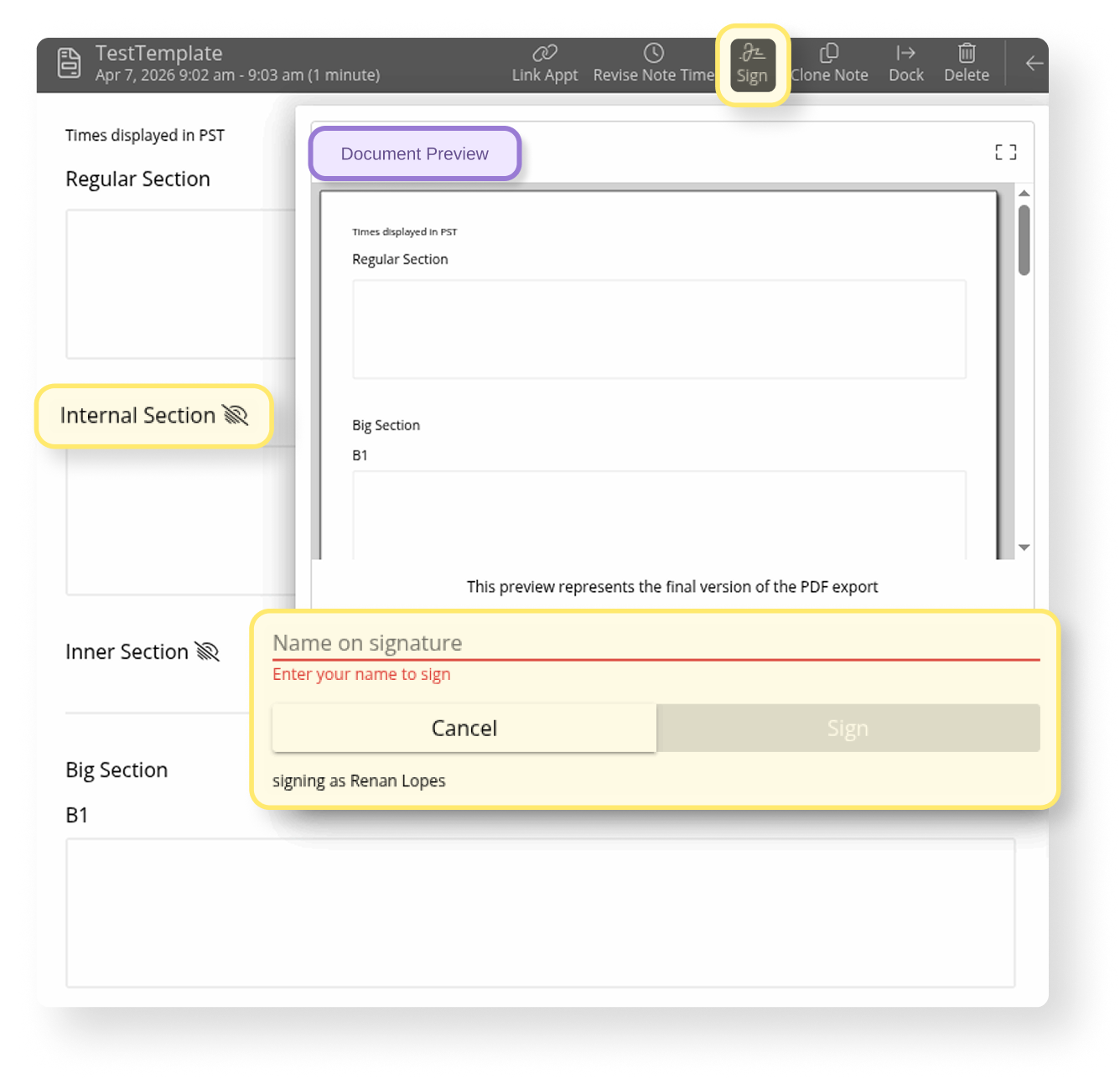
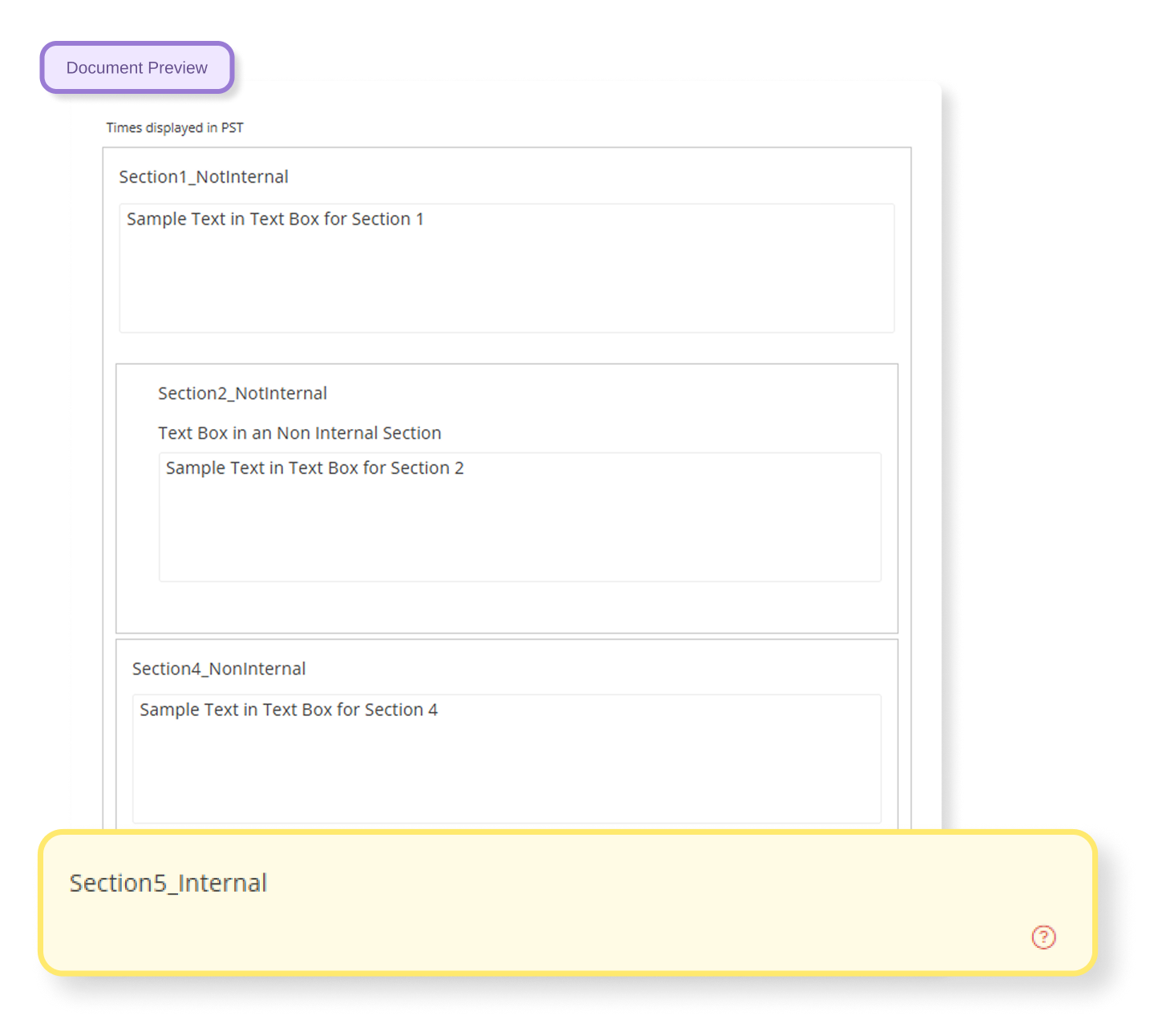
- Preview a note before you sign it. BCBAs and RBTs now see exactly how a note or report will look once it’s signed and locked, with internal and AI sections removed. If a photo landed wonky or a section looks off, back out and fix it, instead of signing, unsigning, and signing again. The preview never blocks signing.
Where to find it: Session note or report > Sign
- Tell similar learners apart in search. With View Search Details on, search results now show each learner’s full name and date of birth, which helps when several learners share similar aliases. Only users who can view protected information see these details.
Where to find it: Learners > Find > View Search Details - A bigger Help icon. The Help icon is now larger and easier to find.
Intake Portal
Prospect reports
See every prospect document, who uploaded it, and when, in one report
Intake teams used to open each prospect to check whether onboarding documents had arrived. The new Prospect Document Upload Report lists every document uploaded to prospect records, with the document type, uploader, upload date, and file name, filterable by prospect status, location, workflow status, document type, and upload date. Missing documents show up before a prospect converts, and audit requests no longer mean opening records one by one.
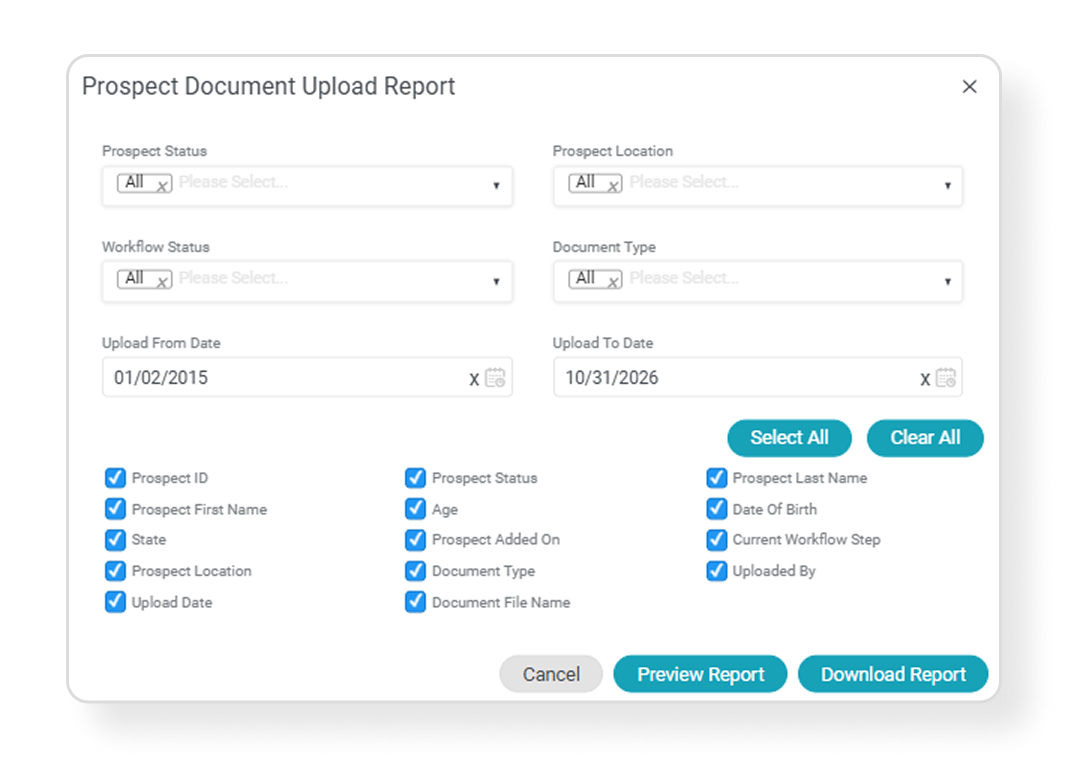
Where to find it: Reports > Prospect > Prospect Document Upload Report
Payor IDs
No more typing payor IDs by hand
When intake coordinators add a funding source to a prospect, the Insurance Payor ID now populates from the matching payor contract and carries through to the patient record on conversion. A value you type is never overwritten.
Where to find it: Intake Portal > Prospect > Funding Source
Prospect alerts
Download Prospect Alerts data
Every alert pop-up, from Incomplete Info to Conversion Overdue, now has a Download icon. The file respects your filters and search, or includes every record under the alert when none are applied.
Where to find it: Prospect Alerts dashboard > alert tile > Download
Across Motivity
Accessibility
Dark mode is here
Motivity now supports dark mode, along with an accessible theme for users who need one. A dimmer screen is easier on the eyes in a quiet therapy room, and less of a distraction when you’re working with learners who are sensitive to bright light.
Questions about any of these updates? Reach out to your Customer Success Manager or visit the Motivity Help Center.
Upcoming releases
All of these next features are live for a limited group of organizations while we gather feedback. If you’re interested in joining any of our Beta and Alpha groups, talk to your Customer Success Manager.
AI session summaries & insights
✦ Walk into a session already caught up on the last ones
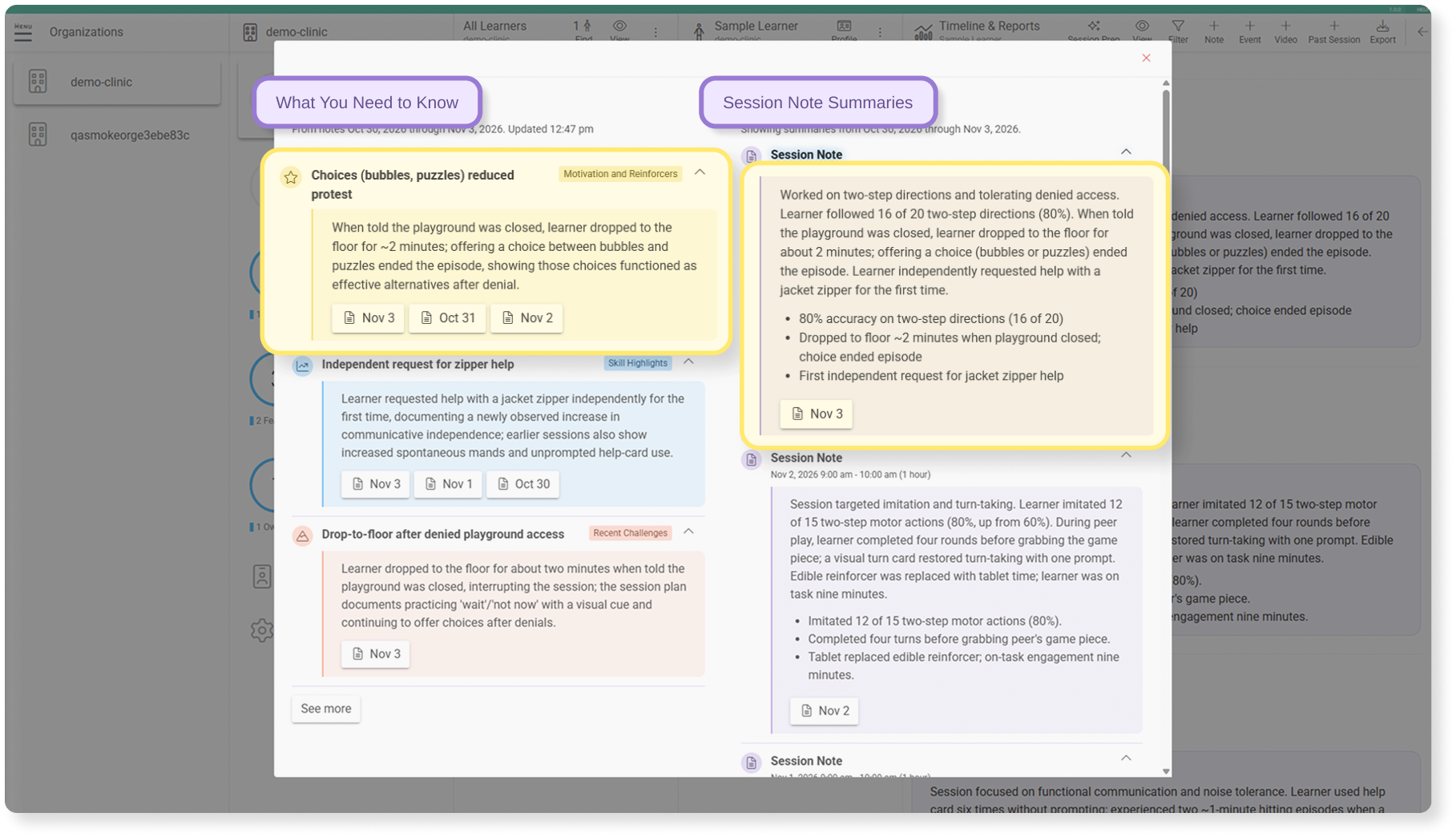
A learner might work with two RBTs and a BCBA in the same week, and until now, the clinician starting Thursday’s session either read every note since Monday or went in without knowing about Tuesday’s elopement or the antecedent strategy that finally worked. Session Prep pulls that context into one panel: once a note is signed, AI writes a short summary and surfaces up to five insights from the learner’s recent notes, ranked by clinical urgency with safety concerns first.
Knowledge Base article: Using Session Prep AI for Clinical Handoffs (Beta)
Offline data collection
Run a full session where the Wi-Fi doesn’t reach
Home visits, community settings, school basements. Offline Data Collection lets you download a learner’s programs and data sheets to your device and run sessions with no internet connection at all.
Denial and EDI coaches
✦ Denial codes and clearinghouse rejections, explained the way a person would
Payors and clearinghouses talk to billers as if they were machines. A CARC or RARC description rarely says what’s actually wrong on the claim, and a clearinghouse rejection arrives as an X12 file that’s hard to read even for experienced billers. So billers paste codes into a search engine, open the claim, coverage, and authorization side by side, and piece it together. These two new coaches do that translation for you:
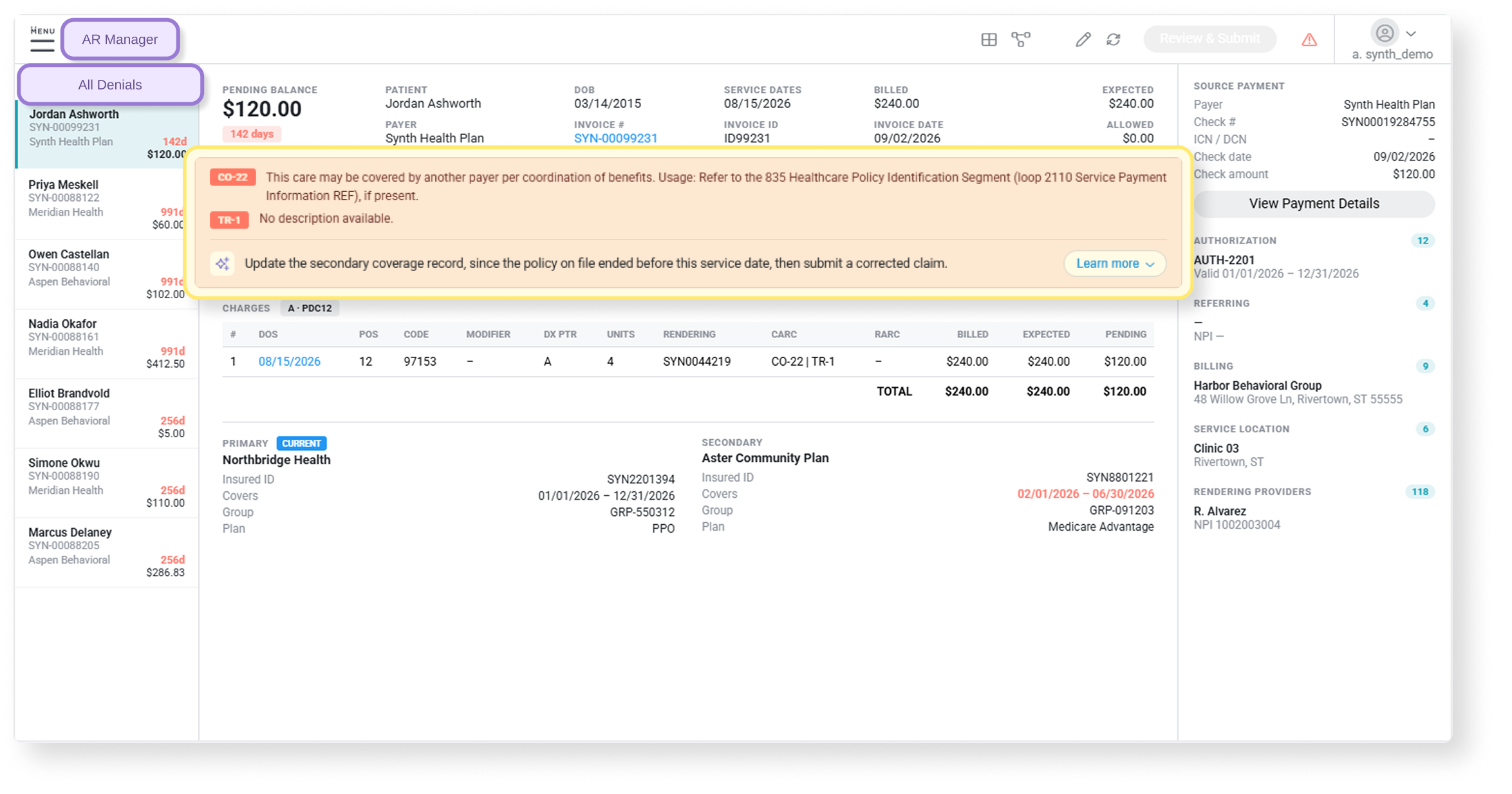
- Denial Coach: On a denied claim in AR Manager, there will be a one-line suggestion, plus a short “Why this denied” explanation. It names the root-cause fix first, never suggests resubmitting without one, and says plainly when a denial, like timely filing, can’t be appealed.
- EDI Coach: When an invoice is stuck at the clearinghouse or rejected by the payor, a new icon in Posted Invoices opens the Clearing House Timeline with the failed step marked in red. The EDI Coach card explains what’s wrong, shows the value that was sent, and tells you how many other claims in the same file hit the same error.
For newer billers, that’s expert-level guidance from the first week. For experienced billers, it’s one less recurring denial to diagnose from scratch, because Denial Coach draws on your organization’s own claim data and past resolutions when the same pattern comes back.
Provider coach
✦ Providers can see their next credentialing step the moment they log in
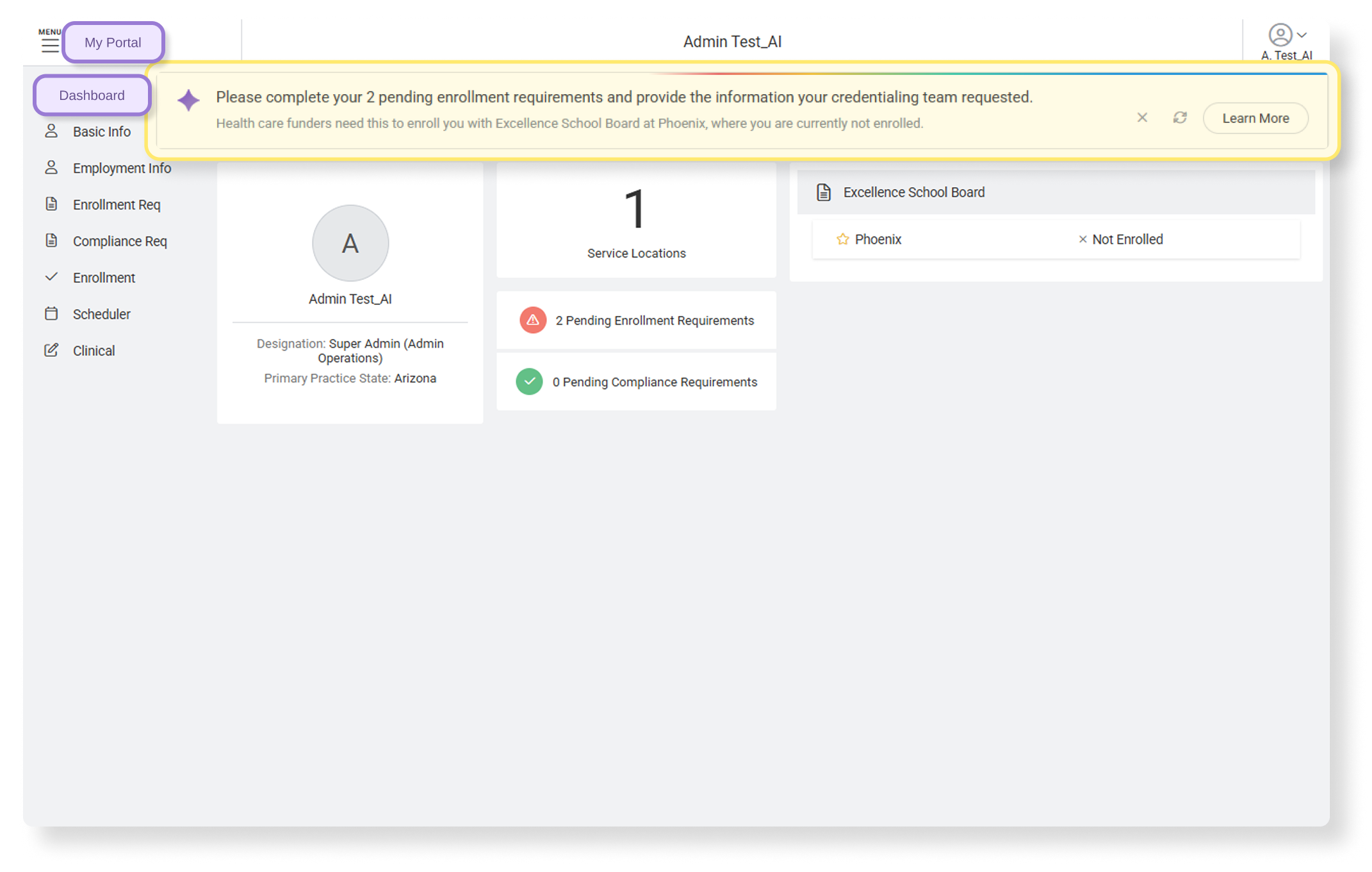
A provider’s Overview opens on the Alerts and Notifications panels, where an expired credential can look the same as a routine follow-up. Provider Coach replaces those panels with one banner. In a single sentence, it names up to three of the most urgent actions for that provider, plus every payor and location where they’re Not Enrolled with requirements pending. Additional AI insights rank every open credentialing, compliance, and enrollment item by severity and by how long it’s been outstanding.
EOB assistant
✦ Upload a paper EOB and post it like an electronic remittance
Paper EOBs have always been the slow lane of payment posting: every line keyed by hand and matched against every open invoice for that funder. Now payment posters upload the scanned EOB (PDF, JPG, PNG, or TIFF), and the system reads it, matches it to claims and service lines, and drops it in the queue already filled in, the same way an ERA arrives. The poster checks it with the source document docked beside the claims, then posts.
Good to know: Nothing posts automatically. Processing takes roughly 1–2 minutes for 1–3 pages and 6–10 minutes for 10 pages or more. An EOB Processing panel tracks every upload as Ready, Queued, or Failed, with options to retry or upload a replacement. Each document gets one extraction confidence score; a low score is a cue to look closer, and it doesn’t block posting.