

What’s new in September 2026
Release date: September 22, 2026
This is a big one, and clinical documentation gets most of the attention. Here’s what we’re most excited about:
- AI can now help you write the first draft of your session note narrative. You review, edit, and stay accountable for every word. Now open to everyone in Beta.
- Brellium now audits notes for every Motivity organization, so compliance auditing no longer depends on which practice management system you run.
- Pull a quarter of documentation for audit in one export, instead of downloading notes learner by learner.
- Twelve Revenue Cycle Management updates aimed squarely at the denials and rework you shouldn’t be absorbing.
→ Integrations

Audit your clinical notes with Brellium, whichever practice management system you use
Motivity’s integration with Brellium’s AI compliance auditing is now available to all Motivity organizations. Once a session note is signed, updated, or approved in Motivity Clinical, it becomes available for Brellium to pull in a nightly sync and audit against payer requirements, compliance standards, documentation quality rules, and billing risk indicators. If something looks wrong, your team gets an alert and corrects the note through the approval workflow you already use in Motivity Clinical. No second documentation system.
How the integration works:
- Configuration: Teams must set up compliance rules inside Brellium and verify that Motivity note templates display the necessary fields.
- Nightly syncs: Once session notes are signed, updated, or approved in Motivity, they become available for Brellium to pull securely into their system via a nightly sync. Eligible notes must be in "Awaiting Approval" or "Approved / Completed" states.
- Automated audits: Brellium reviews the note against payer requirements, compliance standards, quality rules, and billing risk indicators.
- Issue alerts: If documentation issues are detected, your team receives email notifications directly from Brellium or can view details within the Brellium platform.
- In-app corrections: No separate documentation system is required! After reviewing Brellium's feedback, your supervisors continue using existing Motivity Clinical approval workflows to reject or remove the "Approved" status, sending the note back to the clinician for edits.
👀 Interested? Reach out to your Customer Success Manager or use the Brellium Intake Form.
→ Practice Management
✦ Create your signature once, use it on every session you render
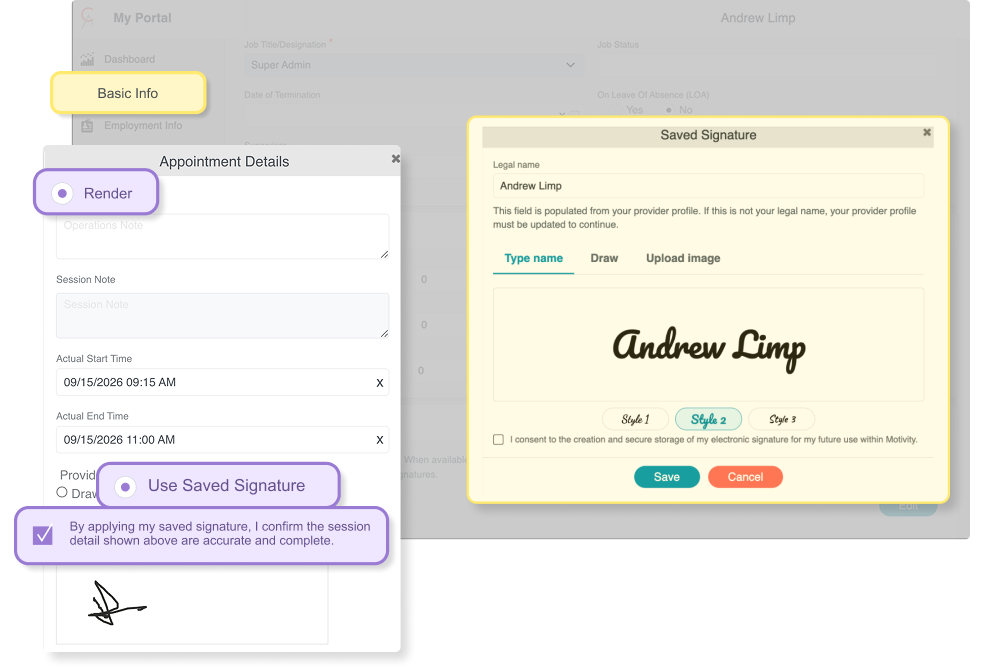
For a provider rendering fifteen sessions a week, drawing a signature by hand is a small annoyance repeated until it isn’t small. Now providers can save an electronic signature to their profile and apply it at render, with consent captured up front and every use written to an audit trail. Payors get the signature-on-file documentation they ask for, and providers get those minutes back.
Only you can use your own signature. Admins can confirm a provider has one on file, but never see the mark itself, and nobody can sign on someone else’s behalf.
‣ Where to find it: Provider Portal > Basic Information > Saved Signature | Scheduler > Render or Start Appointment
‣ Good to know: We offer valid e-signature per US regulations, but cannot guarantee validity outside of the US. This is available in Practice Management to start; Motivity Clinical will follow.
‣ Knowledge Base article: Save & Reuse Provider Signature for Session Rendering
✦ Create custom fields to track the data your organization needs
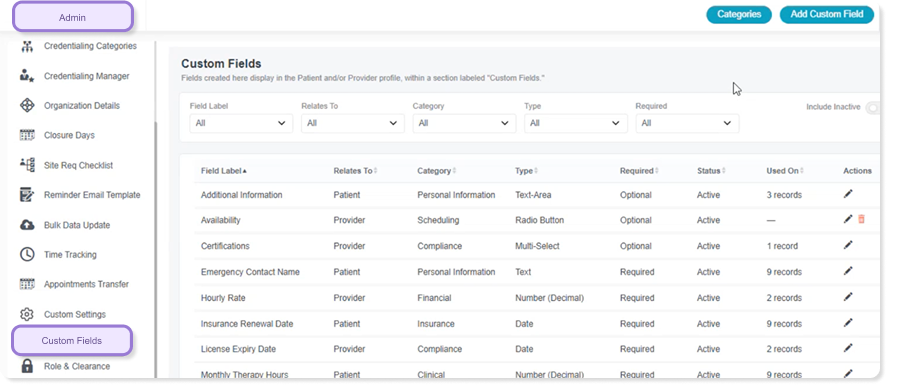
Admins can now build their own custom fields for Patient and Provider profiles, without filing development tickets. Just choose the field type, decide what’s required, and have them live on the profile immediately.
‣ Where to find it: Admin Settings > Custom Fields | Patient > Details > Custom Fields | Provider > Basic Info > Custom Fields
‣ Knowledge Base article: Custom Fields for Patient & Provider Profiles
✦ Set up a multi-office provider in a single save
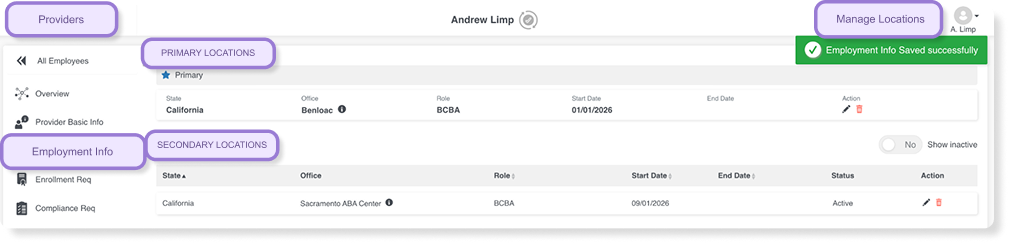
Service Locations has been rebuilt around one entry point. “Manage Locations” replaces “Add Service Location” and lets you set a primary location and add unlimited secondary locations in one transaction. Select several offices for a state and the system generates a separate record per office, role, and date combination automatically. The primary location now sits at the top of the page as its own card, so the answer to “where is this provider based?” takes a glance rather than a scroll.
‣ Where to find it: Provider > Employment Info > Service Locations > Manage Locations
‣ Knowledge Base article: Employment Info
✦ Know exactly where an authorization report needs to be sent
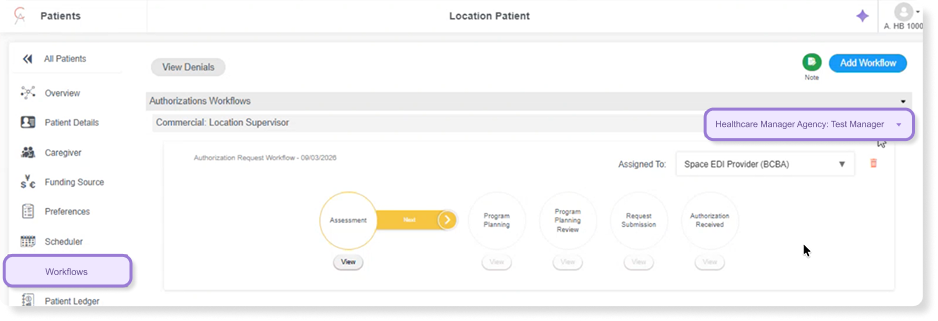
BCBAs viewing an Authorization Workflow can now see the Healthcare Manager Agency tied to the patient’s funding source, not just the funder name. It displays right alongside Funder Name in the workflow panel, so there’s no digging through the funding source to work out which payor entity preauthorization documentation should be addressed to. Where no value has been entered, the label reads “Missing.”
‣ Where to find it: Patient > Funding Source > Insurance Profile | Patient > Authorization Workflow
‣ Good to know: Updating the Healthcare Manager Agency on the Coverage Profile applies to new authorization workflows going forward. Workflows saved earlier keep the value that was in place when they were created, so your historical records stay accurate.
‣ Knowledge Base article: Authorization Workflow
✦ Tell a provider from a parent account without opening a single profile
Admin > Users now shows an Account Type column: Provider, User, or Parent. For anyone auditing a long user list or checking that accounts were created correctly, that’s a column instead of a click-through on every record. It fills itself in from existing configuration, so every user displays correctly from day one.
‣ Where to find it: Admin > Users
✦ A required ZIP code today, one less rejected claim next month
When you add or edit a service location with the United States selected as the country, ZIP Code is now a required field. Incomplete addresses are one of the quieter causes of claim rejections, since payers need the full address to process a claim. Catching it at setup saves the denial, the resubmission, and the rework that follows.
‣ Where to find it: Admin > Office Locations
→ Scheduler
✦ Clear out a batch of appointments in one pass
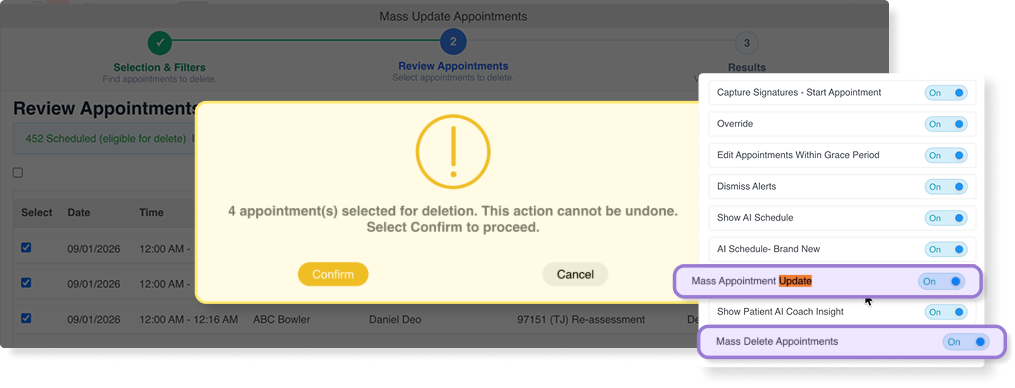
Deleting appointments one at a time is fine until a contract ends, a patient transitions, or somebody builds a recurring series wrong. Schedulers can now delete multiple appointments at once through the Mass Update workflow they already know, with no new filters or search behavior to learn.
‣ Where to find it: Scheduler > three-dot menu > Mass Update Appointments
‣ Good to know: Access is controlled by a new “Mass Delete Appointments” permission, on by default for Super Admins.
‣ Knowledge Base article: Rescheduling or Canceling an Appointment
✦ Alerts that tell you what’s wrong and exactly where to fix it
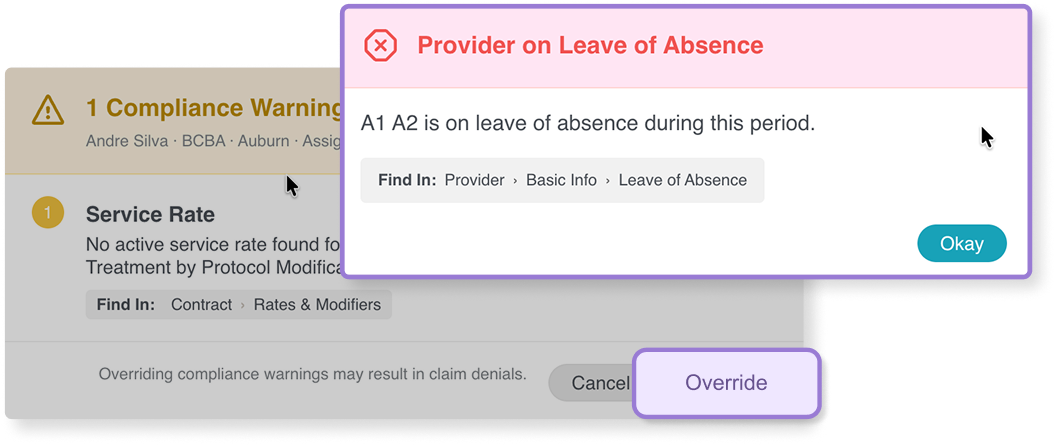
An alert that fires at the moment of scheduling is only worth something if the person reading it knows what to do next. Scheduler alerts have been redesigned across blocker, compliance, and informational types. Every alert now carries a clear tile label, a plain-language explanation of why it triggered, and a “Find In” path pointing to the exact screen where the issue can be resolved, for example Patient > Funding Source > Authorization. The underlying logic was refined too, so alerts fire only under the right conditions with accurate data.
Compliance alerts now break out each unmet requirement individually instead of presenting one dense block of text. The result is fewer alerts dismissed out of confusion, fewer support escalations, and more issues resolved without leaving the scheduling workflow.
‣ Where to find it: Scheduler > appointment creation and edit
‣ Knowledge Base article: Understanding Compliance Alerts & Updates in Motivity Scheduler
✦ Pull the latest rendered times and session notes whenever you want them
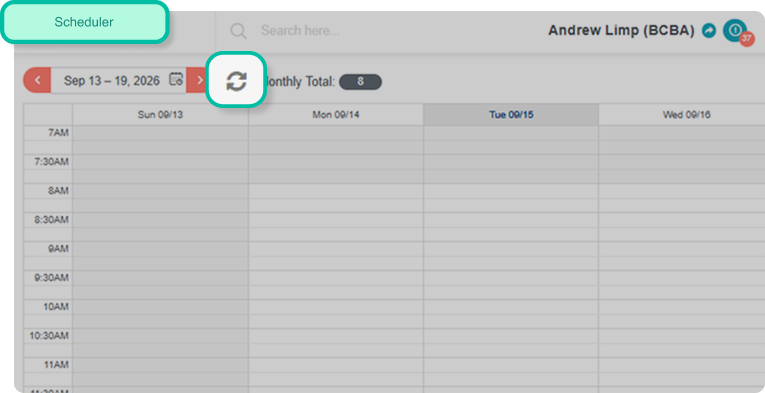
A new sync icon in the Scheduler header refreshes rendered times and session notes from Motivity Clinical on demand, so you don’t have to wait for the next automated sync cycle before making a scheduling or billing decision.
‣ Where to find it: Scheduler > header (Patient, Provider, Clinic, and All-Provider views)
‣ Knowledge Base article: Navigating the Provider Scheduler + Patient Schedule Management
→ AI and Innovation
✦ See how many authorized hours each patient got before you approve an AI-generated schedule
An AI-generated schedule is only useful if you can trust what it did. Until now, working out who got underserved meant reading the projection appointment by appointment. The AI Scheduling Optimizer now opens with a run analysis: authorization utilization for the run, then every patient listed with authorized hours, scheduled hours, utilization, and the single reason their hours weren’t fully covered, whether that’s availability, provider eligibility, capacity, or travel.
‣ Where to find it: Scheduler > AI Optimizer > Project Generated Schedule
‣ Good to know: Nothing reaches the live schedule until someone approves it. You review the draft week by week or day by day, then accept or reject it. And because the numbers export to CSV in one click, coverage data can be shared in a supervision meeting instead of living on a screen someone has to be looking at.
‣ Knowledge Base article: Navigating the AI Scheduling Optimizer (Beta)
✦ Confirm a patient’s insurance is active without leaving their profile
Staff can now confirm a patient’s coverage is active from the Funding Source screen, with no payor call and no portal login. A photo of the insurance card fills in the insured’s details, one action checks the policy, and anything that doesn’t match what’s on file gets flagged for you to resolve rather than quietly overwritten.
Set it to recheck itself every 3, 6, or 12 months and plan changes surface on their own, which turns eligibility from something you remember to do into something that happens.
‣ Where to find it: Patient Manager > Patient Profile > Funding Source
‣ Good to know: This confirms policy activity only, not benefits, copays, or authorizations. Card images fill only empty fields and never overwrite what you typed. Existing funding sources gain the bar in an unverified state, and verifying requires Funding Source edit access.
✦ Catch a wrong NPI before a payer does
Billers can now check a provider’s NPI against the national registry from inside the credential record, and find out whether it’s valid, active, and tied to the same name you have on file. It catches transposed digits, deactivated NPIs, and registry-side name changes at the point of credentialing instead of the point of denial, and every check is recorded on the credential history so an auditor can see exactly what was verified and when.
‣ Where to find it: Provider > Enrollment Req > Required Credentials > NPI Number
‣ Good to know: The check runs only when you click, with no background re-checking, and existing records are untouched at rollout until someone runs one.
→ Revenue Cycle Management
✦ Sort and filter to find the invoice you’re actually looking for
Posted Invoices now sorts alphabetically by patient name, filters by Office, POS, and Contract Type, and lets you multi-select in the Show filter so you can include and omit in one pass. Finding a specific patient’s invoice no longer means scanning a list sorted by amount or claim age.
‣ Where to find it: Billing > Posted Invoices
‣ Available filters: Office, POS, Contract Type
✦ Assign a primary supervisor per line of business
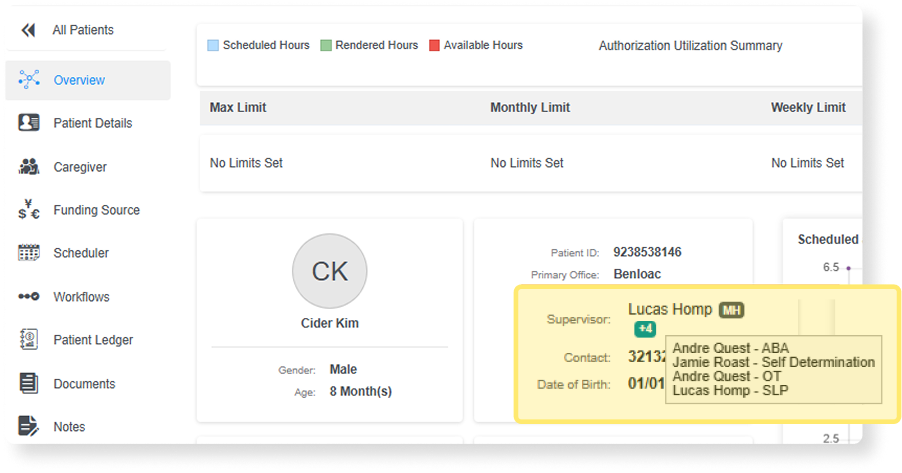
Patients receiving multi-disciplinary services can now have a separate primary supervisor for each line of business, rather than a single supervisor across everything. An org-level toggle enables it, Line of Business becomes mandatory on the supervisor record, and overlap validation keeps the assignments clean. On claims, Box 24J supports multiple supervisors and Box 31 splits claims by supervisor, so the right supervisor goes out per service line.
‣ Where to find it: Patient Manager > Patient Details > Primary Supervisor | Contracts > Contract Details > Claim Configuration
‣ Good to know: A new “Appointment without Supervisor” scheduling alert catches any appointment with no supervisor tagged against it for that line of business. Once enabled, boxes 19, 25, 32a, 33, and 33a and “Send Supervising Provider on Claim” can no longer use the patient supervisor. Existing primary supervisor records are updated to ABA where this is turned on.
✦ Send the ordering provider the way your payer wants it
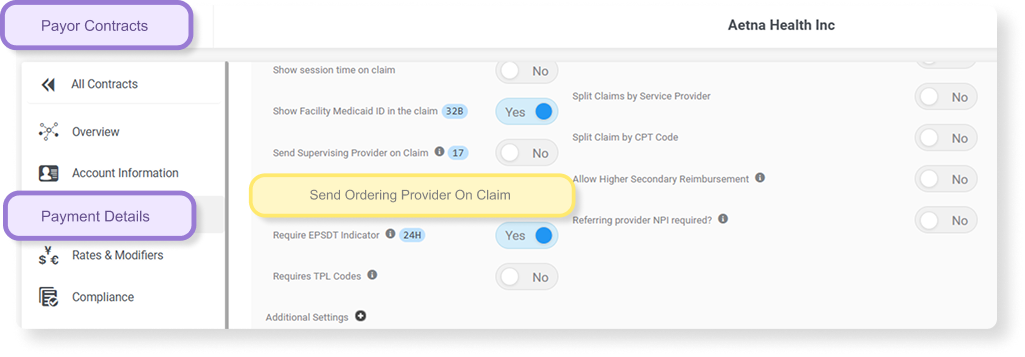
A new contract-level rule, “Send Ordering Provider,” submits the patient’s referring provider as the Ordering Provider (DK) at the service line rather than only at claim level. When it’s on, Loop 2420E is written on every service line and the claim-level referring provider segment is omitted. It works independently of the Supervising Provider (DQ) rule, so both can run together, each in its own loop.
‣ Where to find it: Contracts > Contract Details > Claim Configuration | Billing and Collections (CMS-1500, EDI 837P)
‣ Good to know: Where both rules are on, Supervising Provider (DQ) takes precedence in Box 17. Setting Box 17 manually to DK, DN, or DQ during edit, regeneration, or resubmission overrides configuration for that claim.
✦ Medicaid secondary claims that carry the right primary ID
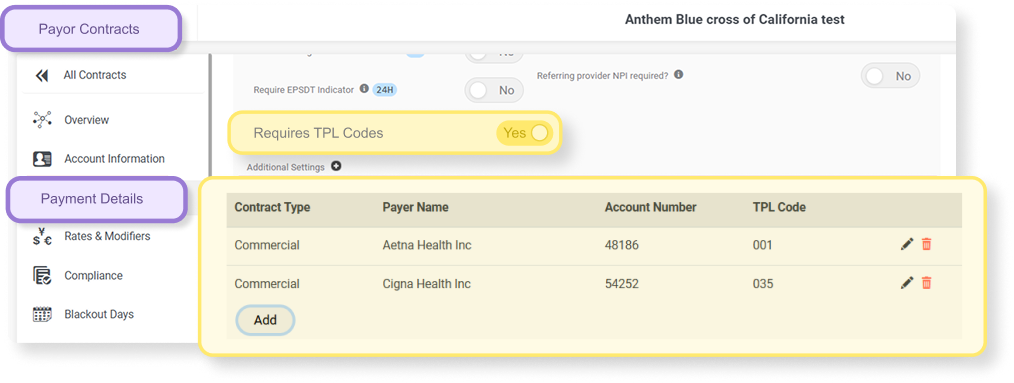
Secondary payer contracts can now store a Third Party Liability (TPL) code per primary payer, so claims to Medicaid payers that require a payer-specific primary ID automatically substitute the correct code. Turn on “Requires TPL codes” and a list appears where you add one row per primary payer this secondary pairs with. At secondary claim generation, the code is matched to the primary payer on the claim and substituted in both NM109 and SVD01 on the EDI 837.
‣ Where to find it: Contracts > Contract Details > Claim Configuration Settings (secondary payer contract)
‣ Good to know: A missing entry holds the claim with an error naming the specific primary payer and secondary contract, and links you straight to the TPL Codes list. Toggling the setting off hides the list without deleting entries. CMS-1500 output is unaffected, and no new access level is needed.
‣ Knowledge Base article: Contract Configuration Setup Guide
✦ Catch over-limit sessions before the payer does
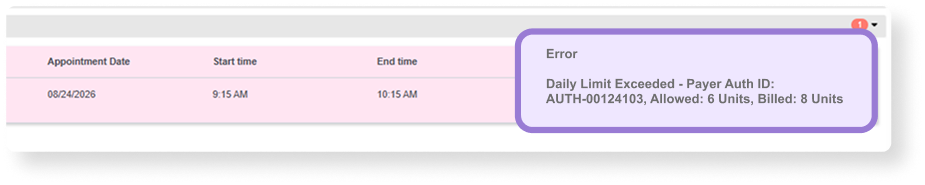
A new “Daily Limit Exceeded” hard-stop scrubbing error flags sessions where cumulative billed units for a patient, authorization, and service date exceed the authorization’s Max Units Per Day, including shared limits across service items. It blocks claim generation for the limit-exceeding appointments and anything aggregated onto the same claim, so the over-utilization gets fixed at batch generation instead of coming back as a denial.
‣ Where to find it: Billing > Unposted Batches (Appointment Information tab) | Errors download report | Collections > Payment Posting
‣ Good to know: This is controlled by an org-level flag set at onboarding, off by default, with no user-facing configuration screen.
‣ Knowledge Base article: Un-Posted Batches Overview
✦ Fix a secondary claim without unwinding the primary
Regenerate and Resubmit now work on secondary claims, not only primary. Regenerate voids the secondary claim and posts a new one straight to the clearinghouse, or creates a copay invoice if secondary funding was removed. Resubmit keeps the same invoice number with an “RE” prefix and is available once a payment has been posted. Minor secondary corrections no longer mean a full primary reversal and everything that follows it.
‣ Where to find it: Billing > Posted Invoices (Regenerate) | Collections > Payment Posting (Resubmit)
‣ Good to know: No new access levels. The existing primary logic is reused.
‣ Knowledge Base article: Motivity Billing 101: 6. Reverse vs. Regenerate vs. Resubmit
✦ A resolved line stops reading as denied
Denial Category and Rejection Codes now disappear from a claim line once its denied amount reaches $0, whether that happened through reconciliation, deleting prefilled EDI values, or resubmission. Existing $0 lines correct themselves at deployment with no manual cleanup. EDI-sourced payments also pick up the same add and delete denial-record editing that manual payments already had, so a misapplied EDI denial can be corrected without a workaround.
‣ Where to find it: Collections > Denials & Payments | Closed Invoices popup | EDI/ERA popup
‣ Good to know: Full denial history stays visible in the Invoice Timeline regardless of what’s currently displayed. Edited EDI denials post with EDI status “Discarded” and posting status “Posted Manually.” Reuses the existing Collection Save Invoice Details access level.
‣ Knowledge Base article: Denials Categori
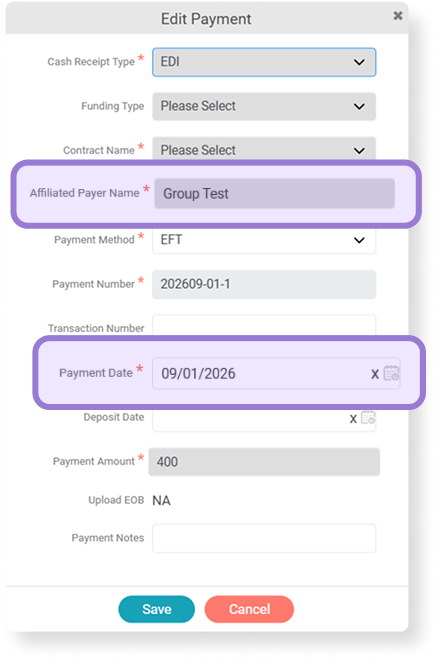
✦ Three (small but mighty) guardrails around payment entry
- Payment Date is now editable on Affiliated Payer payments. Correct a wrong date without reversing and reposting.
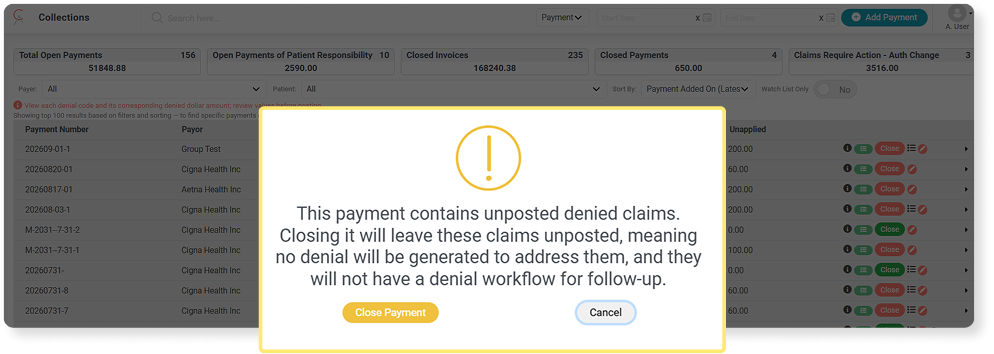
- Closing a payment now warns you first if it has unposted denied claims or an unapplied amount above $0, instead of closing silently and leaving denials without a workflow or balances lost.
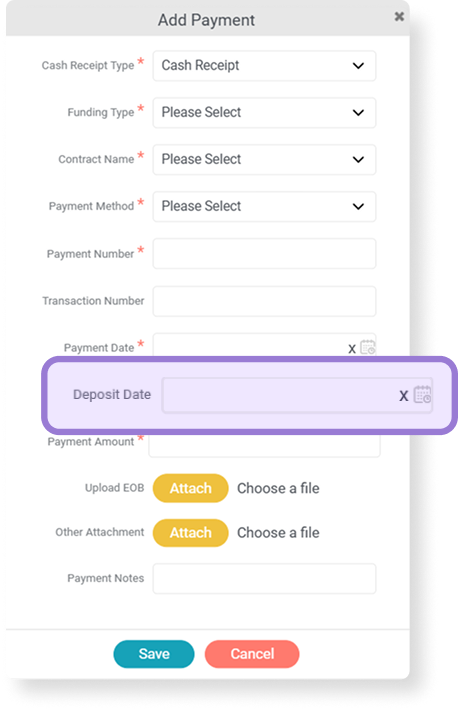
- A new optional Deposit Date field sits below Payment Date, since the deposit can land on a different day from the check. It shows in the Payment Timeline and in the AR Collection and AR Collection Applied reports, next to Check Date.
‣ Knowledge Base article: Unified EDI Payment Posting + Motivity Billing 101: 4. Posting Payments
✦ Show the location where care actually happened
A new toggle lets Box 32 on the CMS-1500 and Loop 2310C on the EDI 837 carry the specific rendering Office Location Name instead of the organization-wide practice name. For multi-location practices, that means claims reflect the office the service came from. It applies to primary, secondary, resubmitted, and regenerated claims, and place of service has no bearing on which office name is used.
‣ Where to find it: Admin > Organization Details > Claim Configuration | Admin > Office Location > General Information
‣ Good to know: Default is No for existing organizations and Yes for new onboarding clients. Box 32a (NPI) and the facility address are unaffected, manual Box 32 edits on an unposted invoice still override, and existing posted claims are not changed retroactively.
‣ Knowledge Base article: Motivity Billing 101: 2. Contract Details
✦ Benefits assignment and release of information are no longer tied together
A new Benefits Indicator field (Yes/No, default Yes) has been added to the Funding Profile claim settings, separate from Release of Information. Benefits Indicator now drives CLM08 and Box 13, while Release of Information drives only CLM09 and Box 12. Existing profiles migrate to whatever their Release of Information value was, so nothing changes on your claims until you decide it should.
‣ Where to find it: Patient > Funding Source > Funding Profile
‣ Knowledge Base article:
✦ Two small tweaks for easier navigation
- No more confusion around whether a claim was posted in Motivity or actually submitted to a payer. The claim status “Posted” has been renamed “Posted Internally,” which reflects what the action does.
- Two unused fields (INS Billing Code Rule Definition and Intake Code Rule) have been removed, and “Terms” is now “Payment Terms.” New tooltips explain the difference between Payment Terms (how long the payer typically takes to process and pay) and Days to Bill (the payer’s timely filing deadline). The same changes carry through to the Contract Details report filters, field selection, preview, and exports.
‣ Where to find it: Contracts > Contract Details | Reports > Contracts > Contract Details Report
→ Clinical
✦ AI Session Note Narrative Generator: Turn your session observations into a finished clinical narrative
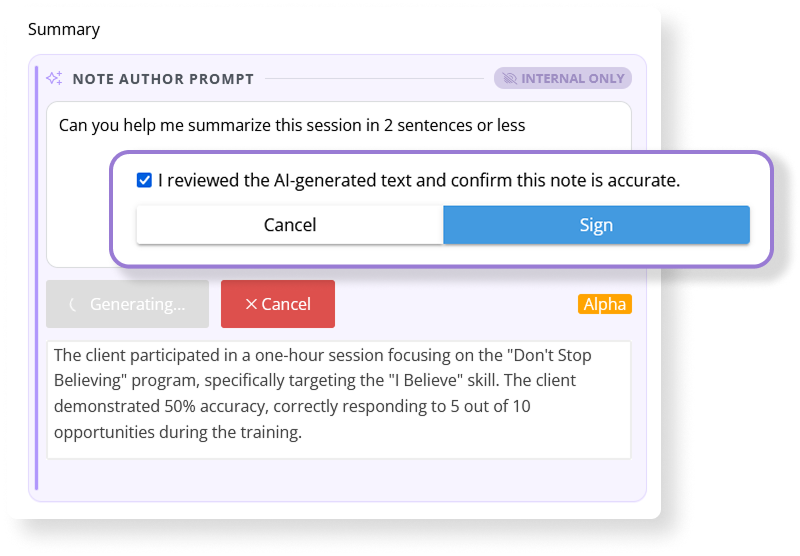
Writing objective documentation after a session takes time that could go to clinical work. AI Session Notes reads the fields, data, and observations already on the note and generates a professional narrative in seconds, with you in control of the final text.
Administrators enable AI on individual text boxes within session note templates and write field-level prompt instructions, so the output follows your organization’s clinical style, payor requirements, and preferred structure. Those instructions stay hidden from note authors and work quietly in the background.
Note authors fill out the session note as usual, add their observations in the prompt box, and click Generate. The narrative appears in an editable output box. Edit it, regenerate it (your manual edits are fed back in as context), and when you sign, a required attestation confirms you have read and approved the clinical accuracy of what’s there. Once signed, the note displays only the clean narrative, with no prompt areas visible.
‣ Where to find it: Note Templates > text box element > Enable AI | Session Note > AI section
‣ Good to know: This feature is in Beta and we will continue to make improvements. If you are interested in assisting us with formal beta testing, please reach out to your CSM to join the study!
‣ Office hours available: Joshua Farrow, our Clinical AI Director, is offering Motivity customers office hours twice per week from 9/23/26 until 11/13/26. You can join to learn how to set up notes, use prompts, and address any questions you may have. Mark it in your calendar, every Wednesday from 1 to 2 pm EST, and every Friday, from 10 to 11 am EST.
‣ Knowledge Base articles:
- AI Session Note Narrative Generator Overview +
- Setting Up the AI Session Note Narrative Generator
- Best Practices for Creating AI Session Note Templates
- AI Session Notes: Suggested Prompt Bank
Additional resources to be released in the next three weeks, including a roll-out kit and online courses for admin and staff. Subscribe here so you never miss an update!
→ Data, Insights, and Reports
✦ Export hundreds of notes at once for a quality audit
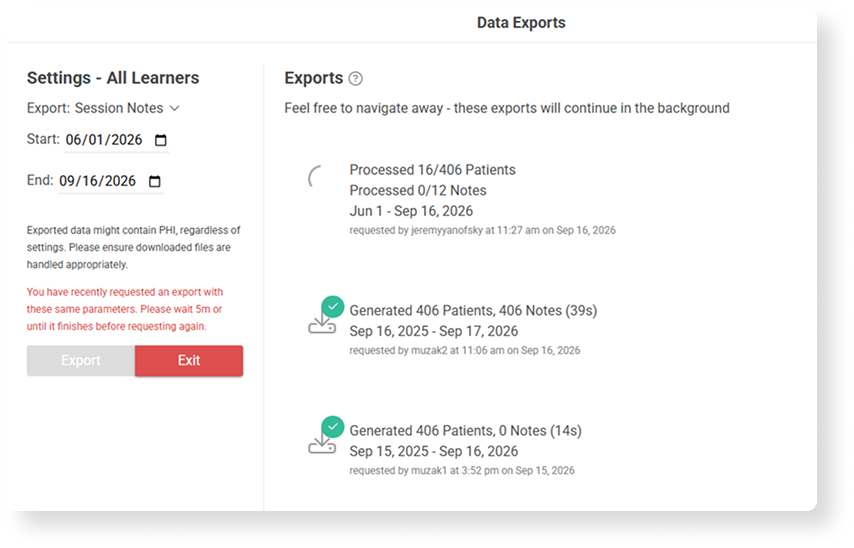
Bulk Note Document Export lets administrators and supervisors download batch documentation (session notes, general notes, and reports) across a whole organization or a specific learner group. Exports process in the background, so you can keep working while the files are generated and download the package when it’s ready. Everything arrives as a zip of individual PDFs with a standardized naming convention, sorted by learner, date, and note type.
‣ Where to find it: All Learners or Learner Group > Export icon > Settings > Export Type
‣ Good to know: You can export Session Notes, General Notes, or Reports, with a date range of up to one year per export.
‣ Knowledge Base article: Bulk Export Across All Learners and Learner Groups
✦ Run every authorization workflow in one report
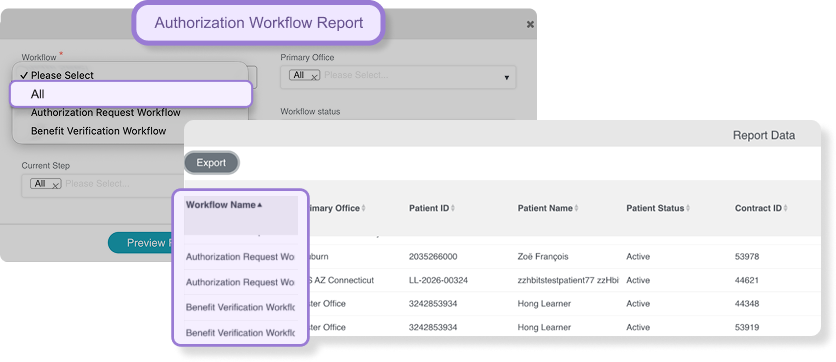
The Authorization Workflow Report has a new “All” option in the Workflow dropdown, so you can generate across every workflow type at once instead of downloading one report per workflow and combining them by hand. Selecting All shows the full superset of unique columns with no duplicates, and Workflow Name becomes the first column so you can tell which workflow each row belongs to. Columns that don’t apply to a given row are simply left blank.
‣ Where to find it: Reports > Authorization Workflow Report
‣ Good to know: Primary Office and Workflow Status filters apply across all workflow types together. Workflow types with no matching records are excluded without errors. Existing single-workflow reports are unchanged in format, columns, and behavior.
✦ See why an appointment was cancelled, right in the report
The free-text note entered when an appointment is cancelled now appears in the Cancellation Recovery Report, separate from the structured cancellation reason. It shows on the preview screen and as its own column at the end of the Excel export, displaying exactly what was typed with no truncation or reformatting in the export. No more opening individual appointments to find context someone already documented.
‣ Where to find it: Reports > Scheduling > Cancellation Recovery Report
‣ Good to know: The field is blank where no note was entered. Visibility follows the same permissions as the rest of the report.
→ Intake Portal
✦ Your prospect filters stay where you left them
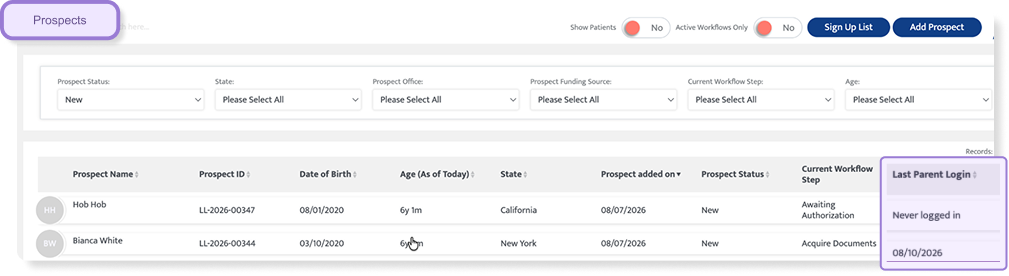
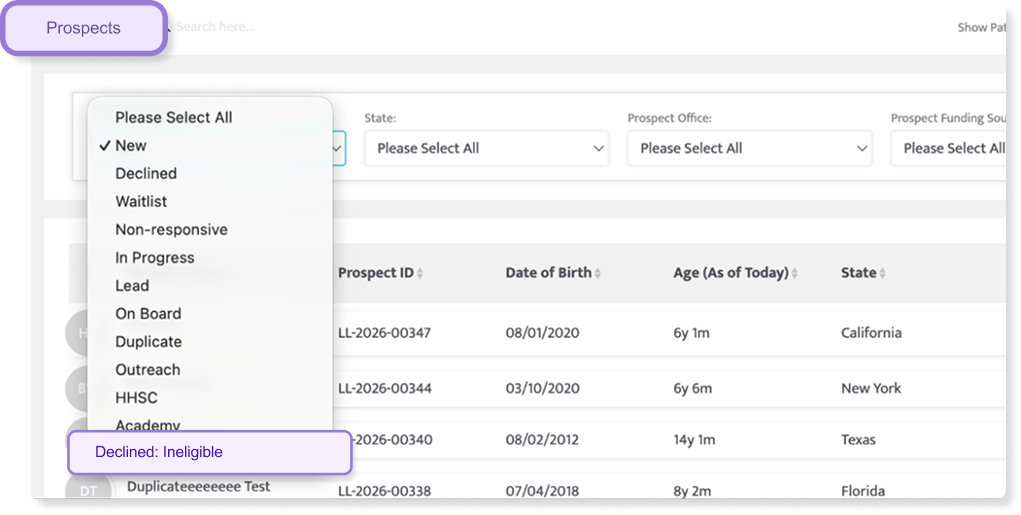
Filters on the Prospect List (Prospect Status, State, Prospect Office, Prospect Funding Source, Current Workflow Step, Age) now stay applied when you open a prospect record and come back, across as many round trips as you need in a session. They persist until you change or clear them. The list also picks up a sortable “Last Parent Login” column showing the parent or guardian’s most recent portal login, or “Never logged in,” so you can gauge family engagement without leaving the grid. And a new “Declined: Ineligible” status gives ineligible prospects a proper home in the system instead of a spreadsheet somewhere.
‣ Where to find it: Intake Portal > Prospect List
‣ Available filters: Prospect Status (now including Declined: Ineligible), State, Prospect Office, Prospect Funding Source, Current Workflow Step, Age
‣ Knowledge Base article: Intake: Using the Prospects Module
✦ Prospect and guardian details in one place, ready to export
A new Prospect Basic Info report pulls prospect demographic, contact, and legal guardian details captured during intake into a single filterable, exportable report, one row per prospect. It covers name, date of birth, language, gender, diagnosis, address, phone and email, referral source, location, status, and last logged-in, plus full primary and secondary legal guardian details. Column order mirrors the existing Patient Basic Info Report wherever an equivalent field exists.
‣ Where to find it: Reports > Prospect > Prospect Basic Info
‣ Available filters: State/Province, Patient Location, Patient Status (each multi-select, combining with AND logic)
✦ Note activity and parent engagement in the Prospect Progress Report
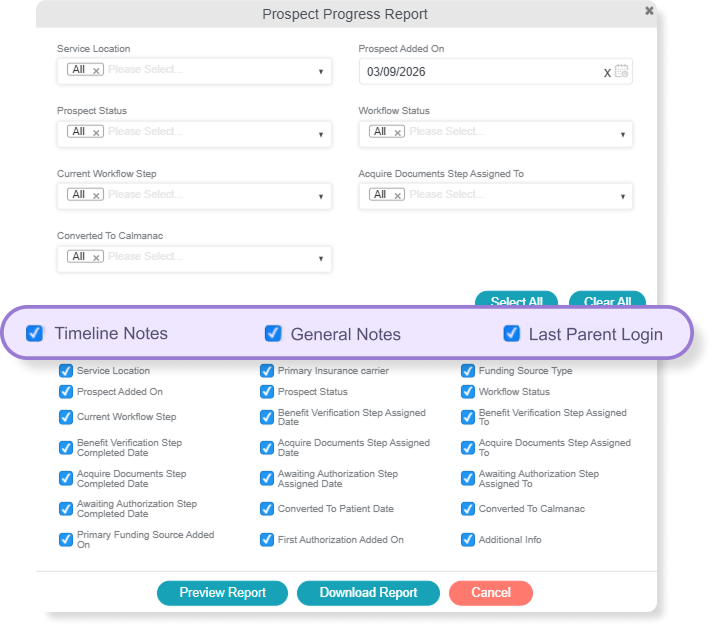
The Prospect Progress Report now includes Timeline Note, General Note, and Last Parent Login columns, added at the end of the report. You get a view of each prospect’s latest note activity and portal engagement without opening individual records.
‣ Where to find it: Reports > Prospect > Prospect Progress Report
✦ Workflow uploads land in the prospect’s Documents module
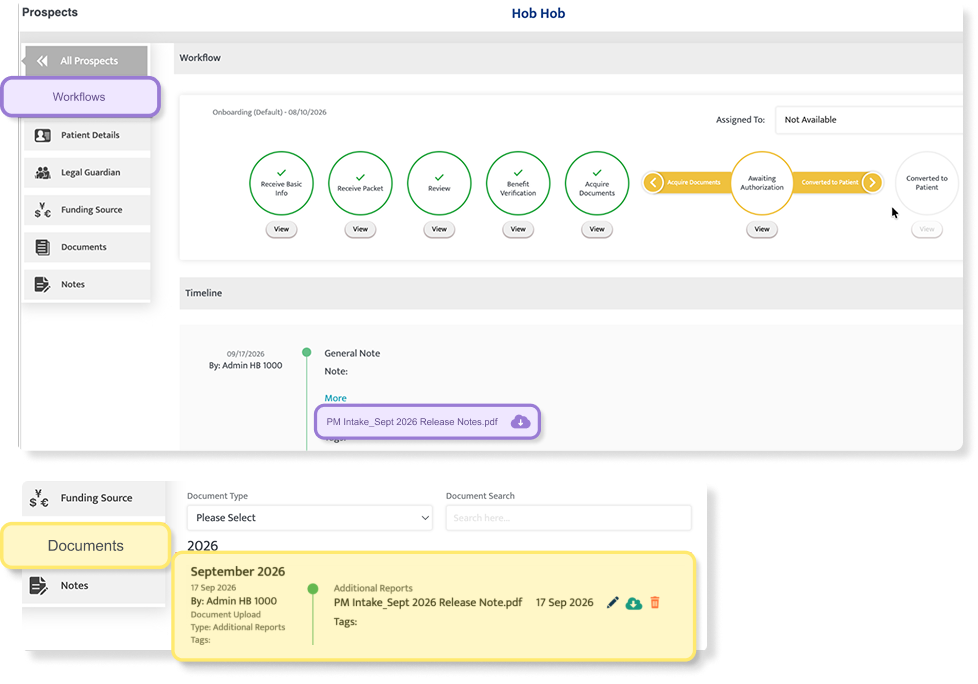
Documents added while working through the Intake Workflow steps now flow automatically into the prospect’s Document module, so the same file isn’t sitting in two separate places. Once there, you can view, download, and manage them exactly like any other prospect document.
‣ Where to find it: Intake Portal > Prospect > Workflow | Prospect > Documents
→ Motivity All-In-One
✦ A rejected note in Clinical now syncs back into Practice Management
Until now, once a session note was approved and linked to an appointment, Motivity Practice Management had no way of knowing if that note was later rejected in Motivity Clinical. The appointment stayed Rendered and billing-eligible on documentation that was no longer valid. Now, when a linked note is rejected in Clinical, Practice Management automatically unlinks the note, clears the therapist and parent signature, reverts the actual start and end times to the original scheduled values, and moves the appointment from Rendered back to Scheduled, with a timestamped entry on the appointment Timeline.
‣ Where to find it: Scheduler > Appointment Details > Timeline
✦ Find and fix appointments caught between cancelled and rendered
When an appointment is rendered in Clinical at the same moment it’s cancelled in Practice Management, it lands in a Canceled (Service Rendered) status: a genuine conflict, and until now an invisible one. The alert designed to surface it is now live for every Motivity organization, and it shows your full existing backlog, not only new conflicts. Each one resolves in a single click, as Rendered or as Cancelled, with the decision pushed to Clinical and recorded on the timeline. The scheduler now shows these in red while unresolved, so staff stop mistaking a conflicted appointment for an ordinary one.
‣ Where to find it: Dashboard > Scheduler Alerts > “Appointments with Canceled (Service Rendered) Status”
‣ Good to know: If the session note behind the appointment is rejected in Clinical before an admin resolves it, the appointment is removed from the alert automatically.
✦ Multi-disciplinary care, reflected on the clinical side
To support patients receiving ABA alongside Speech, OT, or PT, Practice Management now lets a patient be assigned more than one primary supervisor based on line of business, and every assigned supervisor is sent through to Motivity Clinical. The clinical side reflects the full supervising care team rather than a single name, which is closer to how multi-disciplinary care actually runs.
‣ Where to find it: Patient > Patient Details > Primary Supervisor (Practice Management) | Learner Profile > Authorized Case Supervisor (Clinical)
‣ Knowledge Base article: Patient Details
Questions about any of these updates? Reach out to your Customer Success Manager or visit the Motivity Help Center.